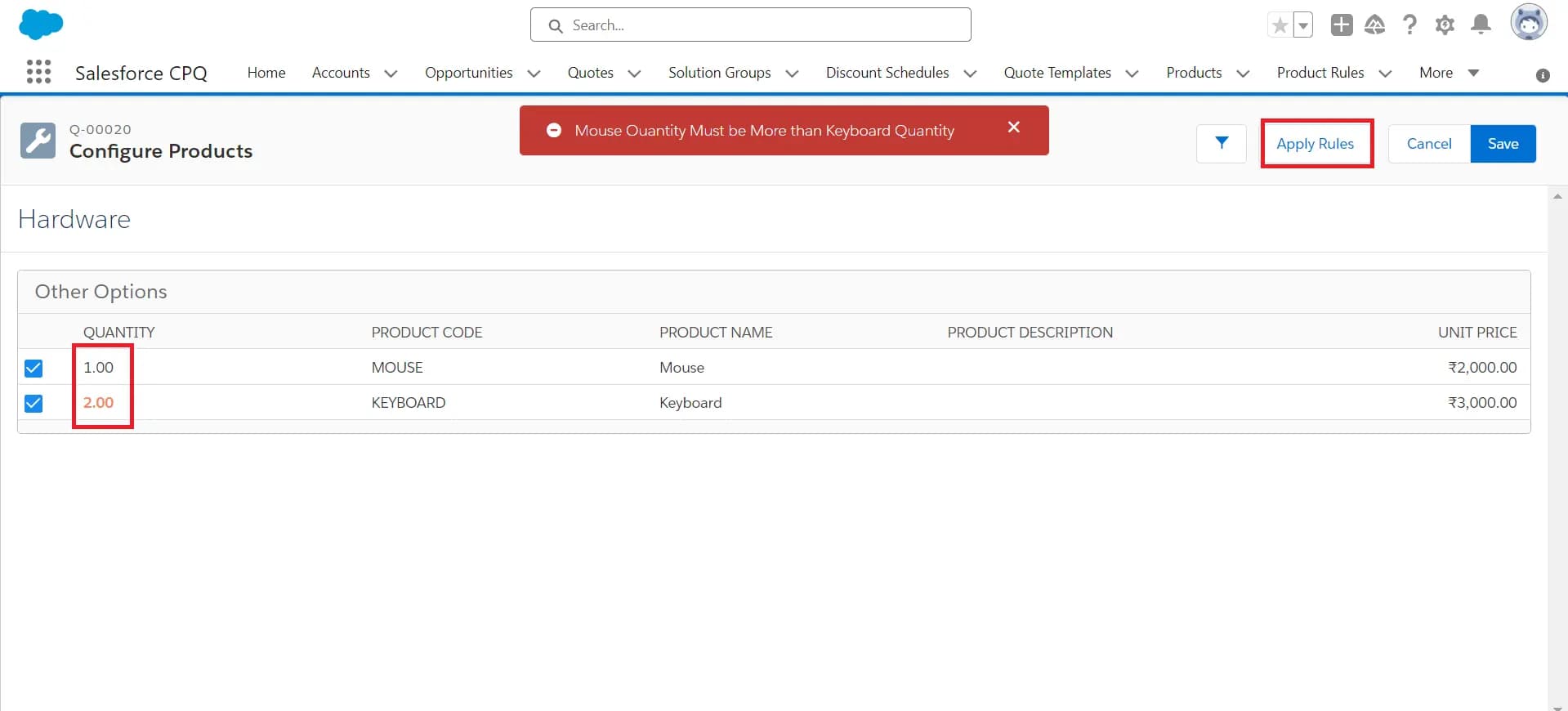
After completing this unit, you will be able to:
1. What is a Summary Variable?
2. How to use Summary Variable?
What is a Summary Variable?
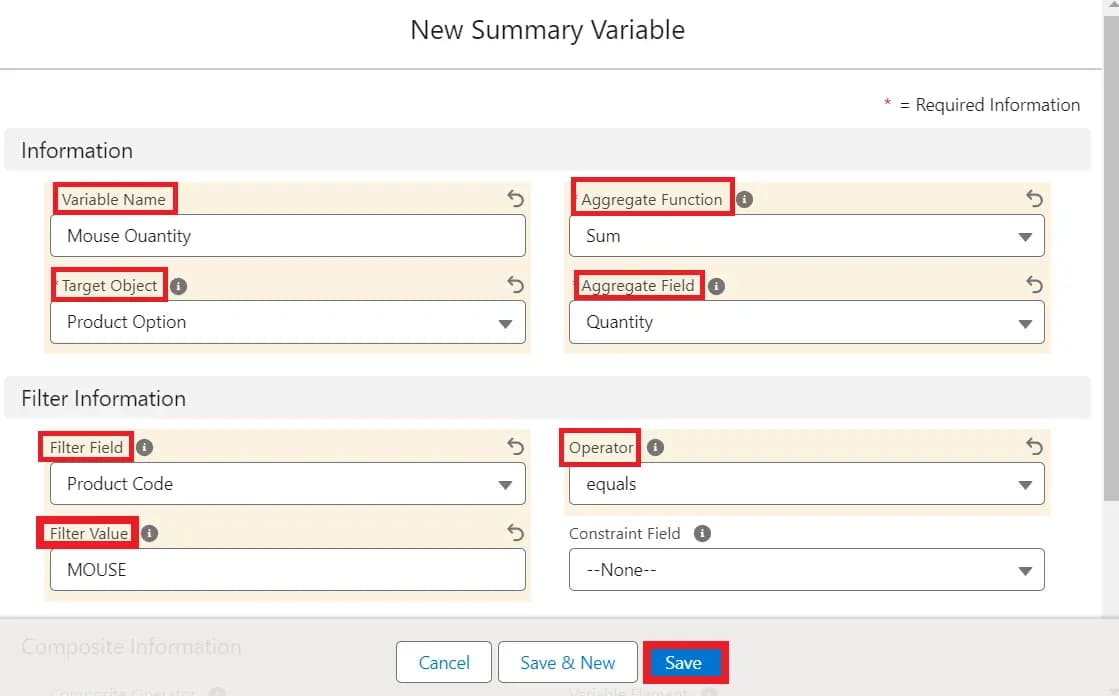
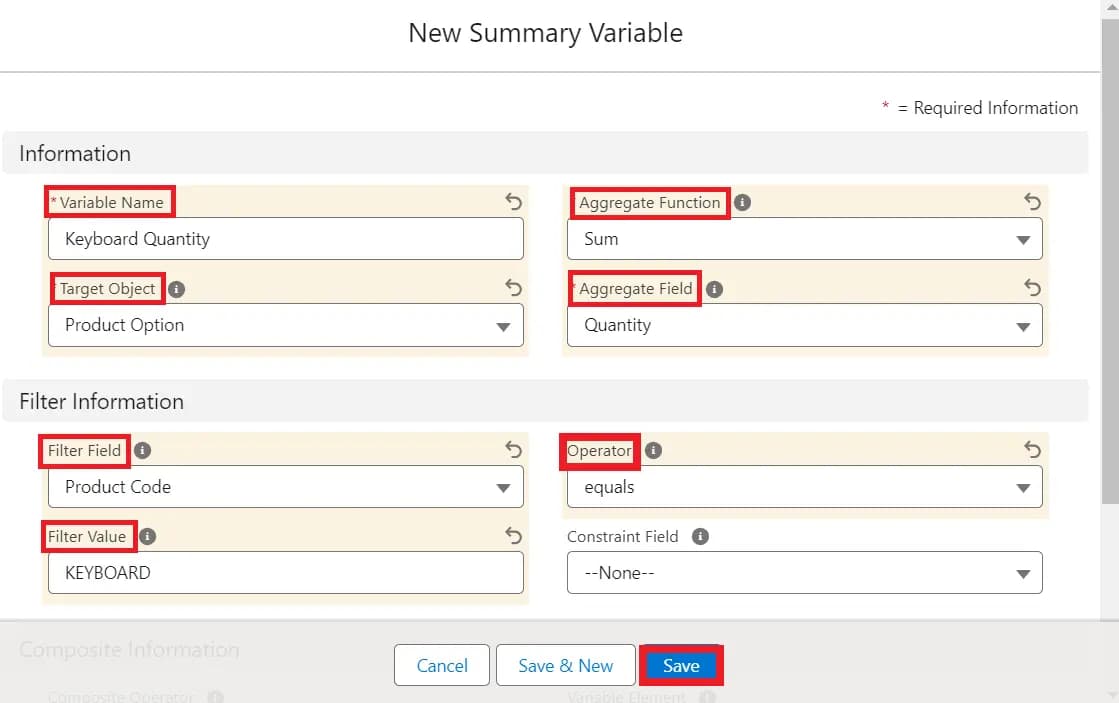
Summary Variable allows you to perform mathematical operations on collected values from a number of fields associated with various records, like quote lines, product options, subscriptions, or assets. Here's how they work:
1. Mathematical Operations: You can define mathematical functions like sum, average, count, minimum, or maximum on the values of number fields. For instance, you can sum up the prices of all quote line items, calculate the average discount percentage, count the number of units sold, or find the maximum value of a particular field across all records.
2. Scope: Summary Variables can be scoped to specific records by applying filters. These filters ensure that the summary variable evaluates only the fields on records that match the specified filter criteria. For example, you can create a summary variable that sums up the prices of only quote line items with a specific product category or belonging to a particular sales region.
3. Usage: Once defined, summary variables can be referenced in various parts of the Salesforce CPQ environment. You can use them in quotes, quote line fields, and product rules to drive pricing, discounts, or other business logic based on the calculated summary values.
4. Dynamic Evaluation: Summary Variables dynamically recalculate their values as changes occur to the underlying records. This ensures that the summary information remains accurate and reflects the latest data entered into the system.
Overall, Summary Variable Fields provide a powerful mechanism for performing calculations and aggregations on numerical data within Salesforce CPQ, enabling organizations to derive valuable insights and automate pricing and quoting processes effectively.
How to use Summary Variable?
Create a Bundle Product
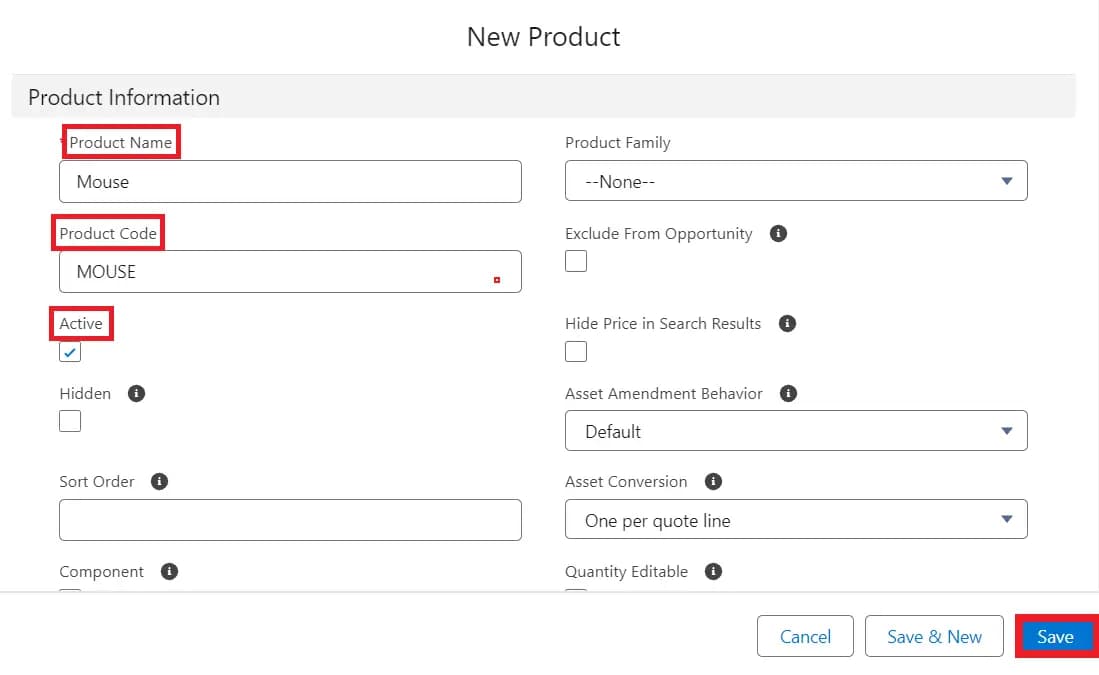
1. For creating a product, search Products in the App Launcher and select it.
2. Click on the New button and fill in these fields:
| Field | Value |
|---|---|
| Product Name | Mouse |
| Product Code | MOUSE |
| Active | True |
3. Click Save.
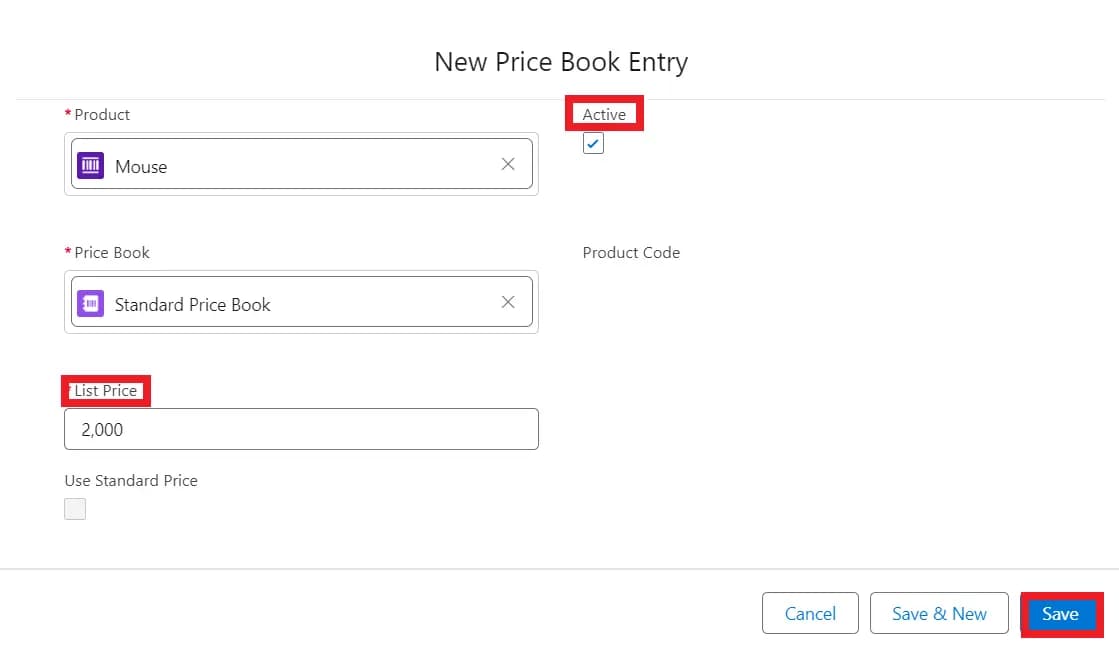
4. Now click on the Related tab, then go to Price Books, click on Add Standard Price, and fill out all the below fields:
| Field | Value |
|---|---|
| List Price | 2000 |
| Active | True |
5. Click Save.
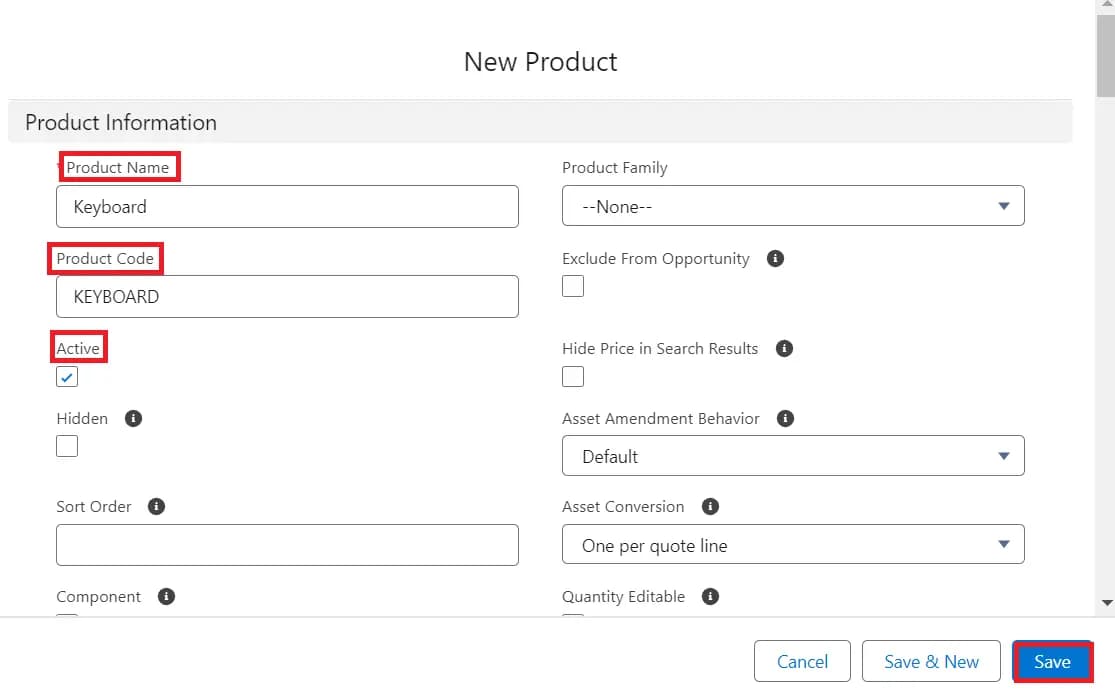
6. Similarly, you can create one more product with the following fields:
| Field | Value |
|---|---|
| Product Name | Keyboard |
| Product Code | KEYBOARD |
| Active | True |
and create price books with the following fields:
| Field | Value |
|---|---|
| List Price | 3000 |
| Active | True |
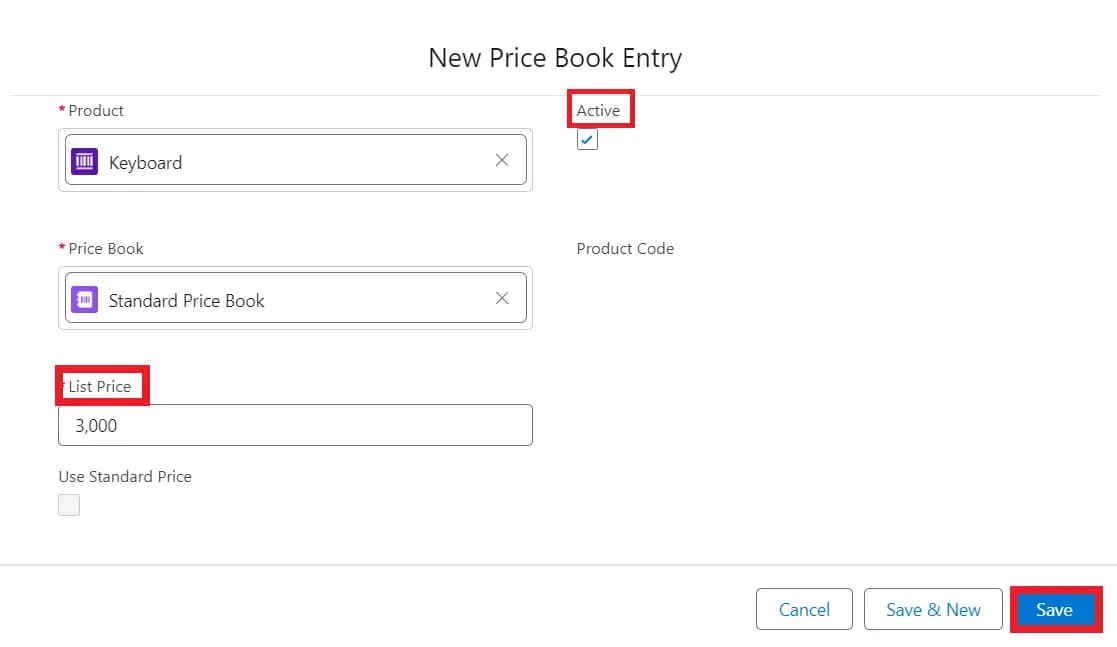
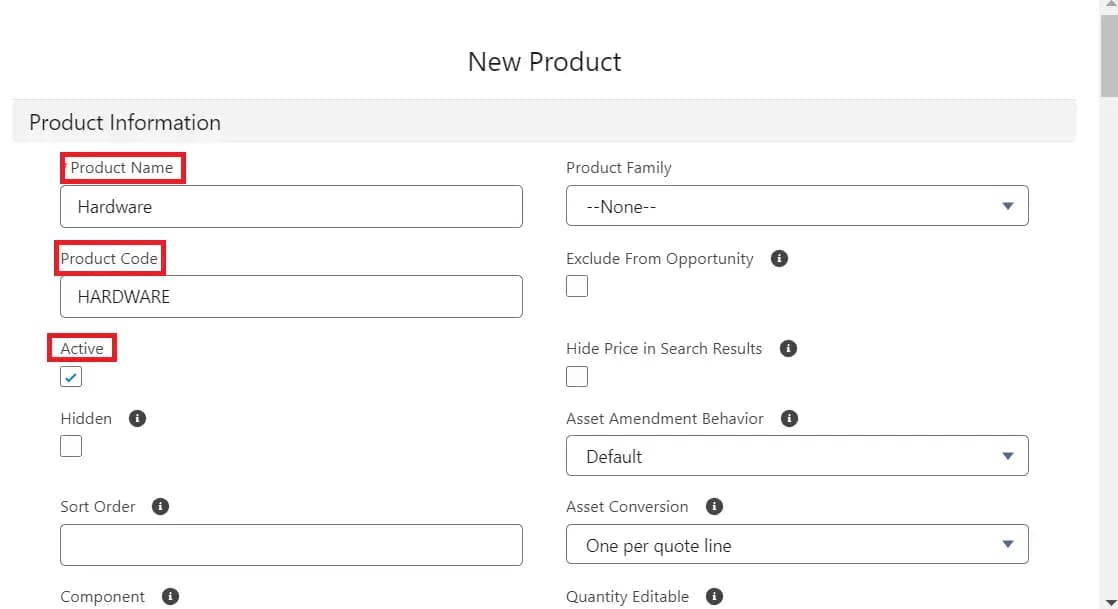
7. Similarly, create a new bundle product with the following fields:
| Field | Value |
|---|---|
| Product Name | Hardware |
| Product Code | HARDWARE |
| Active | True |
| Configuration Type | Allowed |
| Configuration Event | Always |
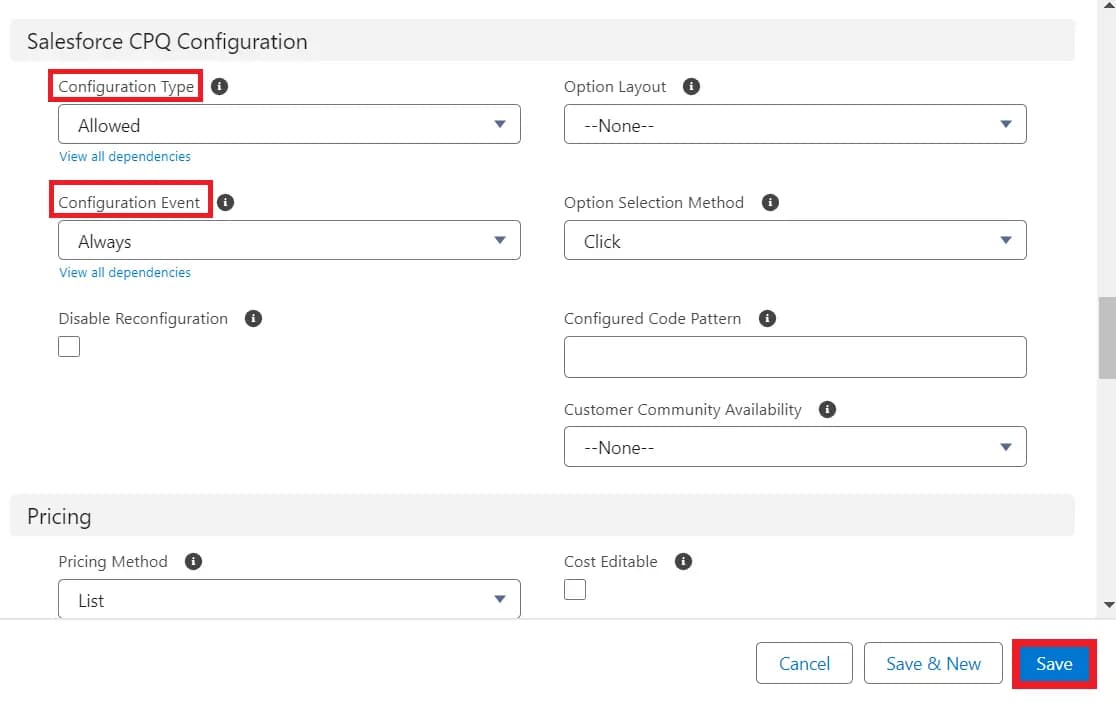
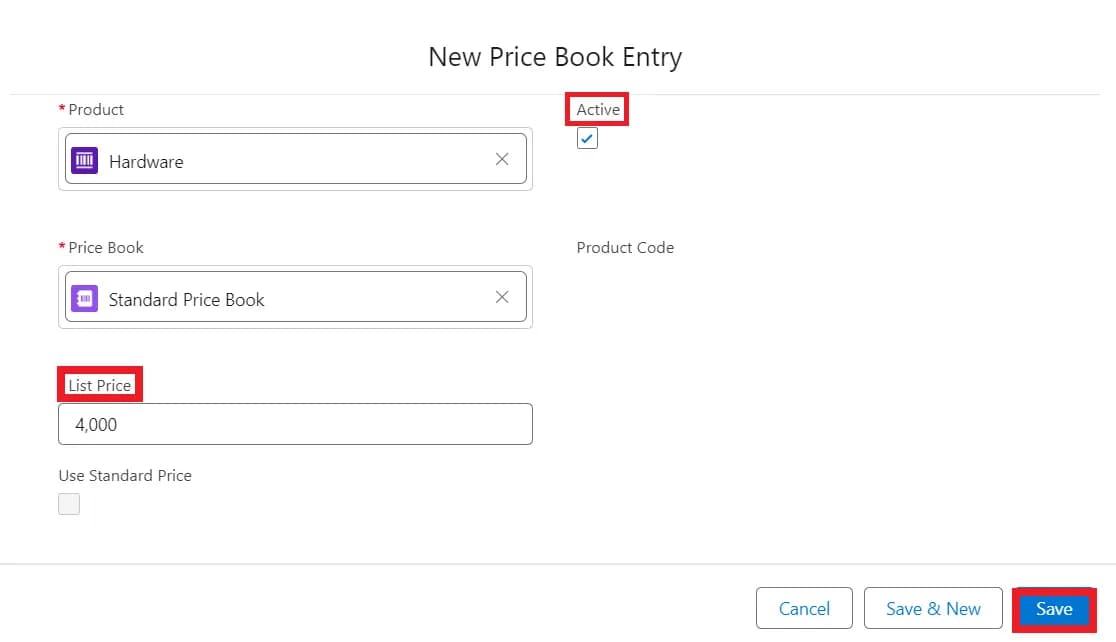
and create price Books with the following fields:
| Field | Value |
|---|---|
| List Price | 4000 |
| Active | True |
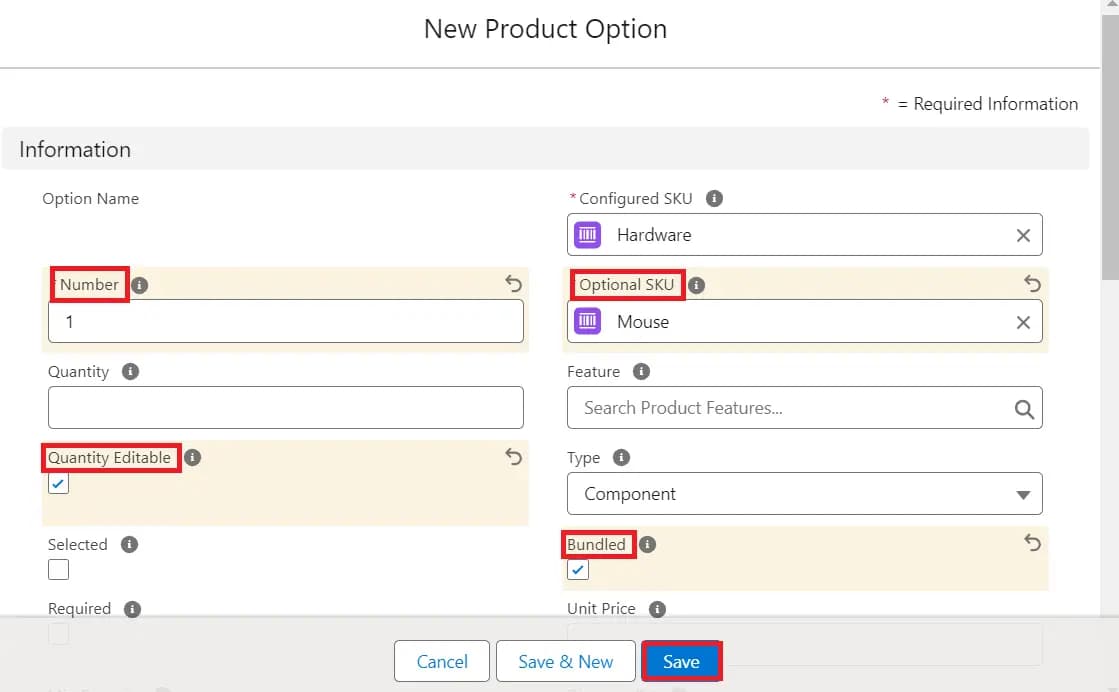
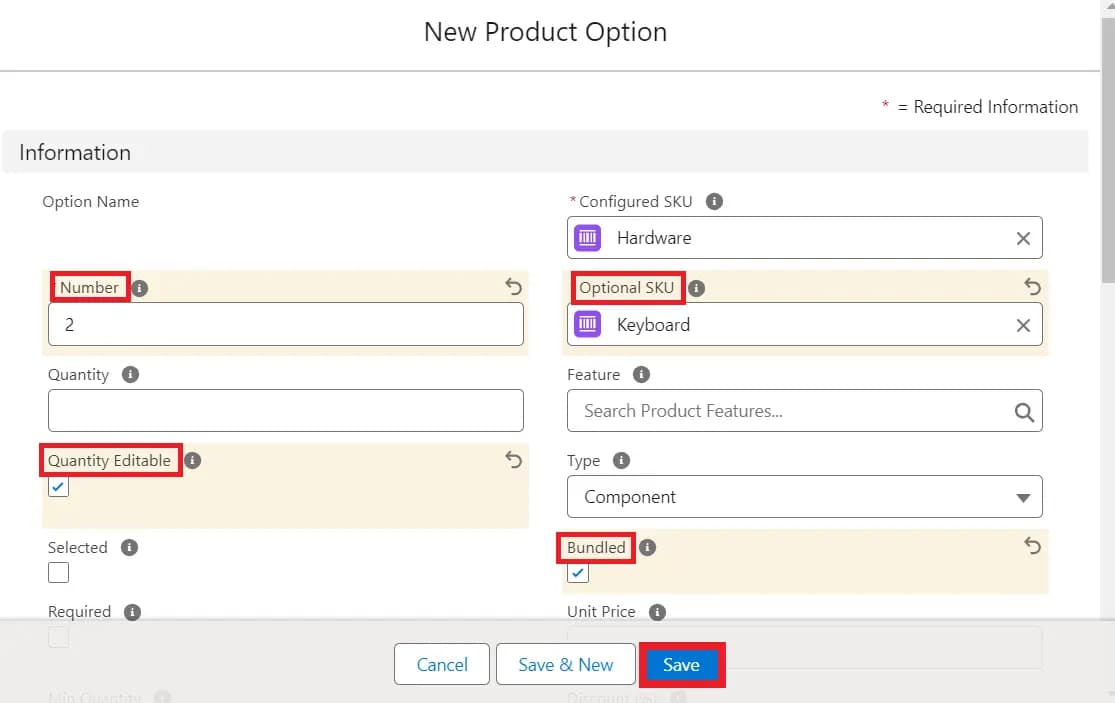
8. Now, in the Related tab of the hardware product, go to Options, then click on New to create two product options by filling in these fields:
| Fields | Option1 | Option2 |
|---|---|---|
| Number | 1 | 2 |
| Optional SKU | Mouse | Keyboard |
| Quantity Editable | True | True |
| Bundled | True | True |