After completing this unit, you will be able to:
1. What is guided selling in Salesforce CPQ?
2. What are the benefits of using guided selling in Salesforce CPQ?
3. How to setup guided selling in Salesforce CPQ?
What is guided selling in Salesforce CPQ?
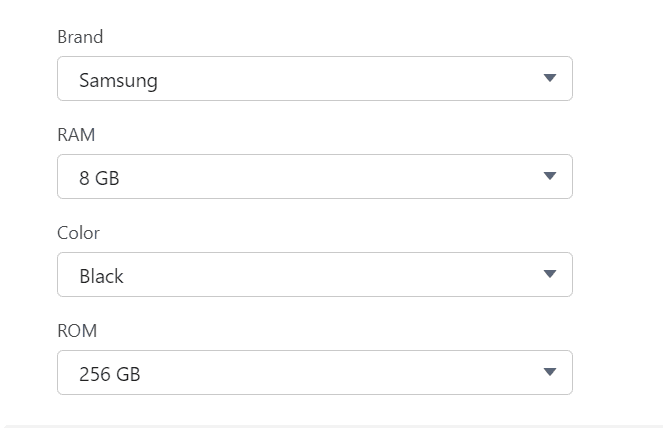
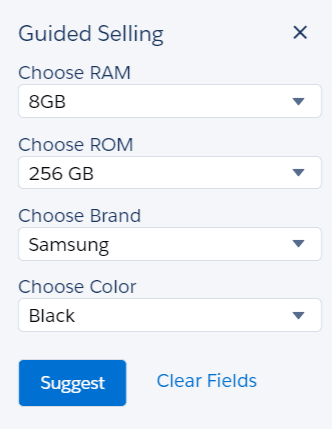
Guided selling in Salesforce CPQ is a feature that helps sales reps quickly and easily find the right products for their customers by asking a series of targeted questions. It acts like a virtual sales advisor, guiding the rep through the product catalog based on the customer's specific needs and requirements.
The benefits of using guided selling in Salesforce CPQ include:
Increased sales efficiency: Guided selling can help sales reps close deals faster by helping them find the right products quickly and easily.
Improved customer satisfaction: By ensuring that customers get the products they need, guided selling can help to improve customer satisfaction.
Reduced quoting errors: Guided selling can help to reduce quoting errors by ensuring that the right products are added to quotes.
Overall, guided selling is a powerful tool that can help sales reps sell more effectively and efficiently.
How to setup guided selling in Salesforce CPQ?
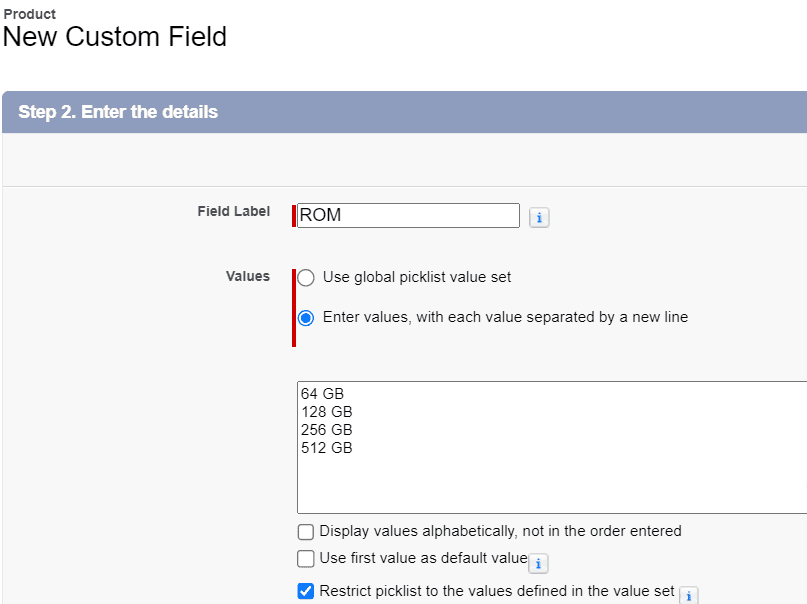
1. Go to Setup → Object Manager → Product → Fields & Relationships → New.
2. Select Picklist, click next, inside the field label, enter ROM, and in values, select Enter values with each value separated by a new line, and enter
| Value |
|---|
| 64 GB |
| 128 GB |
| 256 GB |
| 512 GB |
3. Click Next, Next and Save.
4. Similarly, you can also create these fields:
| Data Type | Field Label | Values |
|---|---|---|
| Picklist | Brand | Samsung, Apple, Vivo |
| Picklist | RAM | 4GB, 6GB, 8GB, 12GB, 16GB |
| Picklist | Color | Black, White, Red, Gray |
5. Create the same fields (RAM, Brand, ROM and Color) in the Process Input object.
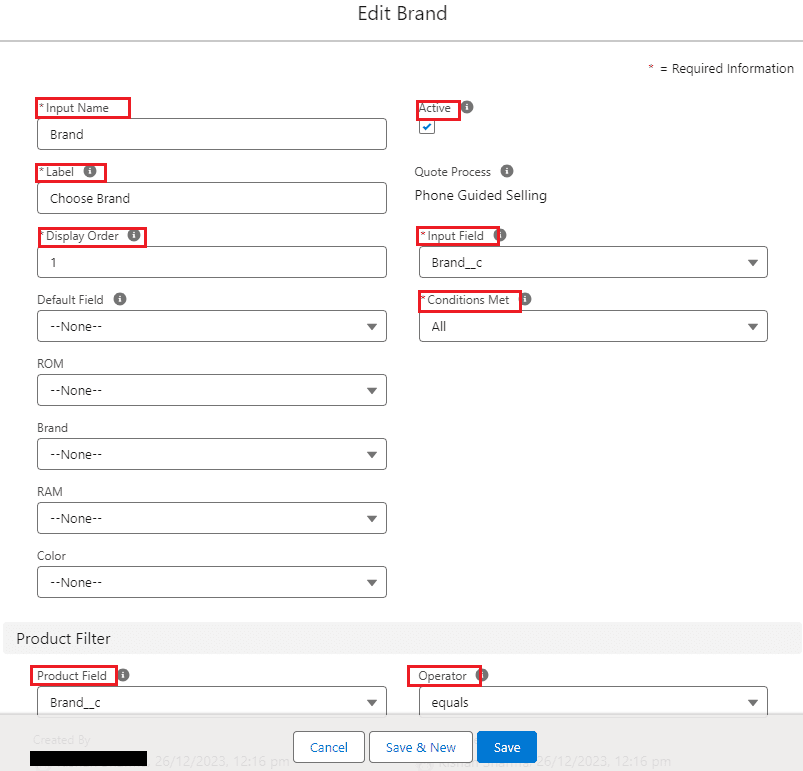
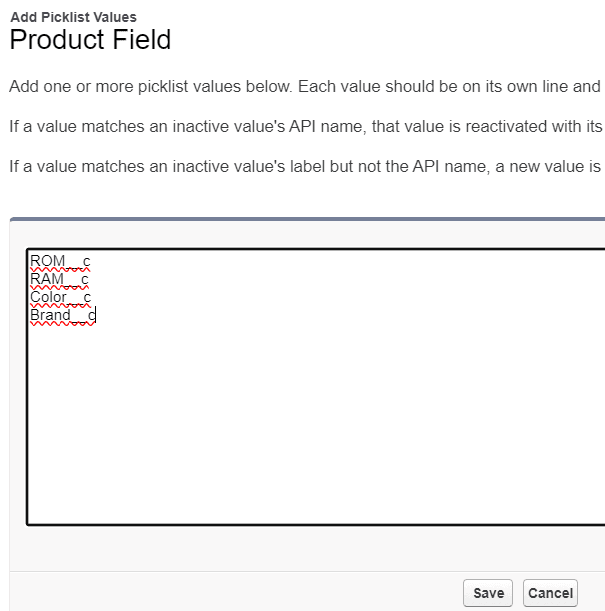
6. In the Fields & Relationships of Process Input object, go to Product Field inside Values, click New, and paste the API name of the ROM, Brand, RAM, and Color fields, and click Save.
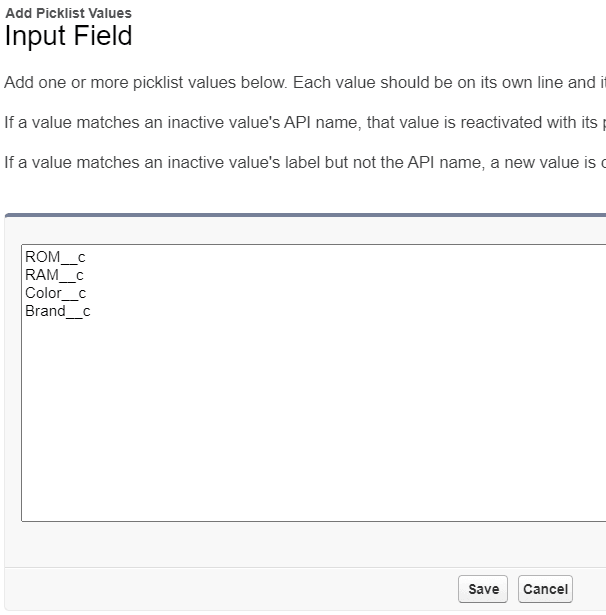
- In the Fields & Relationships of Process Input object, go to Input Field inside Values, click New, and paste the API name of the ROM, Brand, RAM, and Color fields, and click Save.
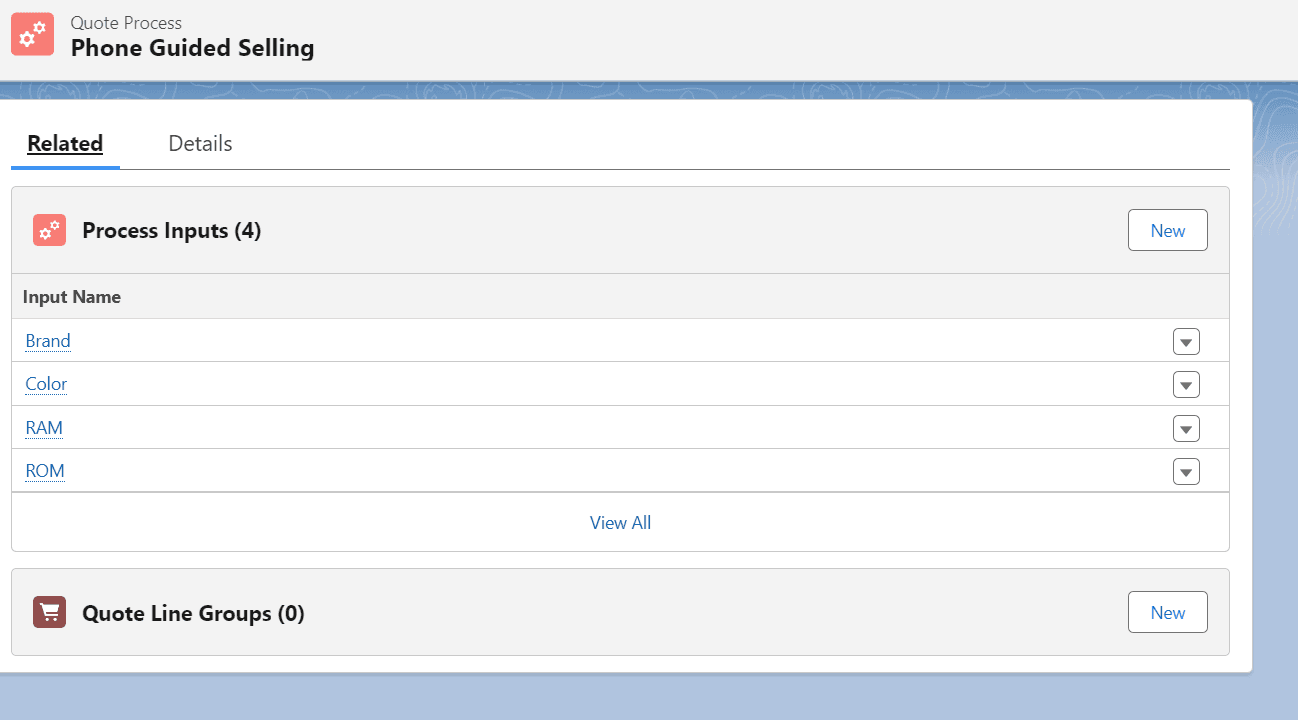
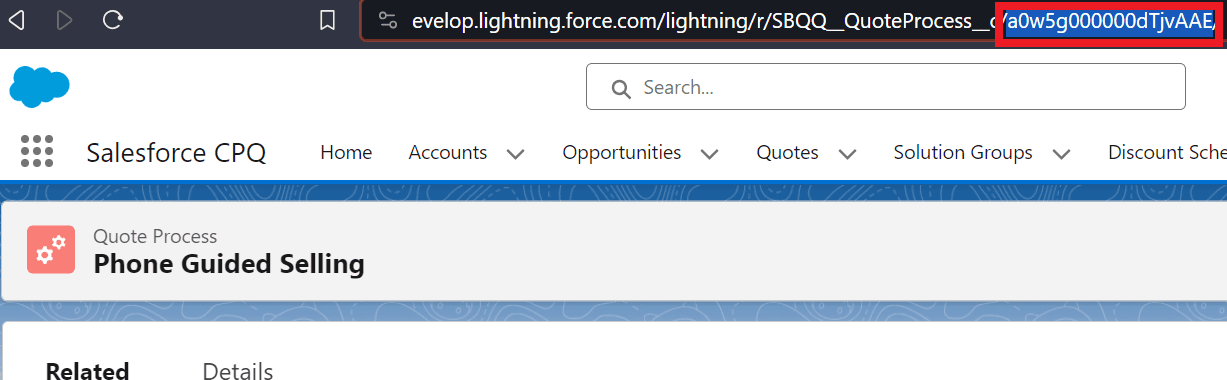
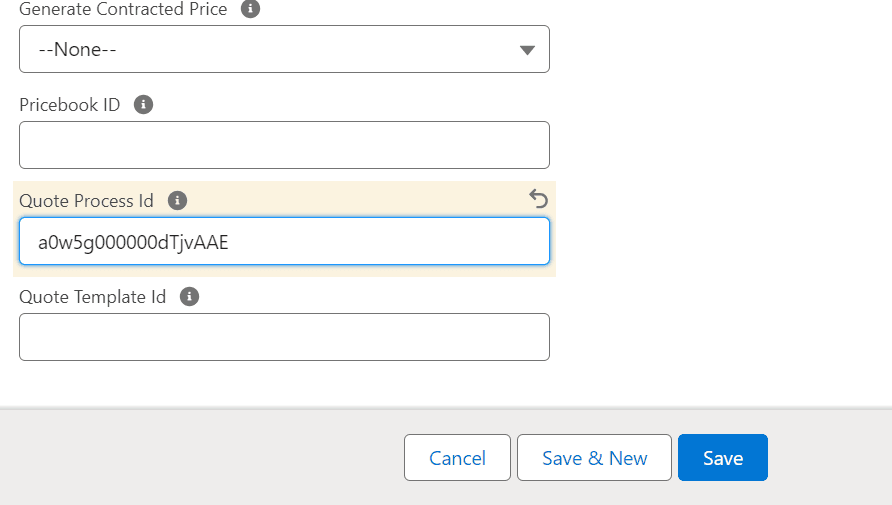
8. Go to App Launcher → Quote Processes → Click New inside Process Name enter Phone Guided Selling and click Save.