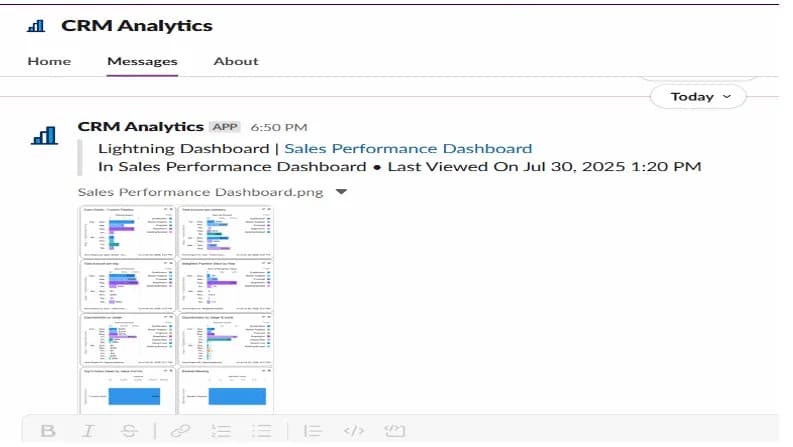
Integrating Slack and Salesforce for sharing dashboards is a powerful way to enhance team collaboration and keep everyone informed in real time by directly sharing Salesforce data visualizations in Slack channels.
Overview of Slack-Salesforce Dashboard Integration
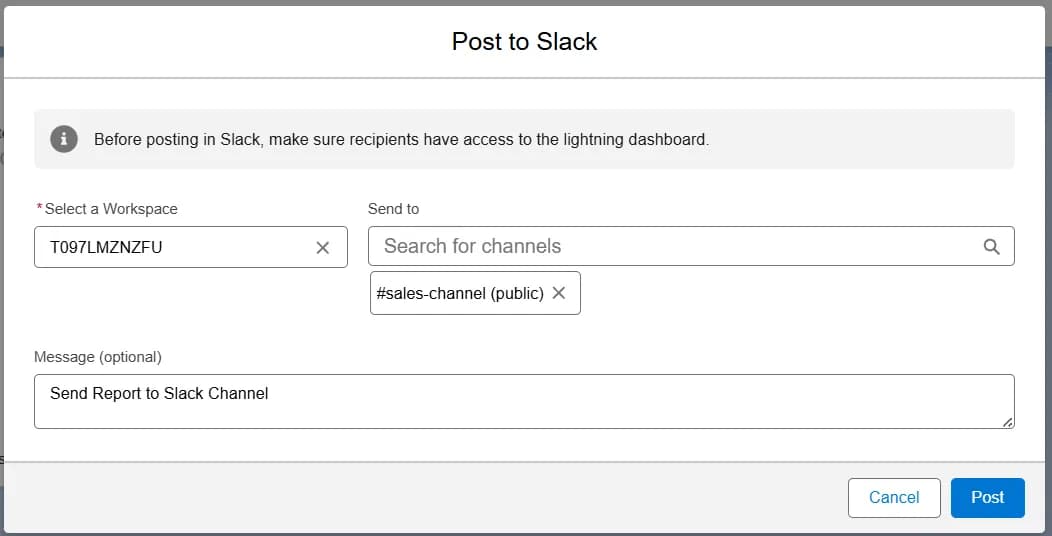
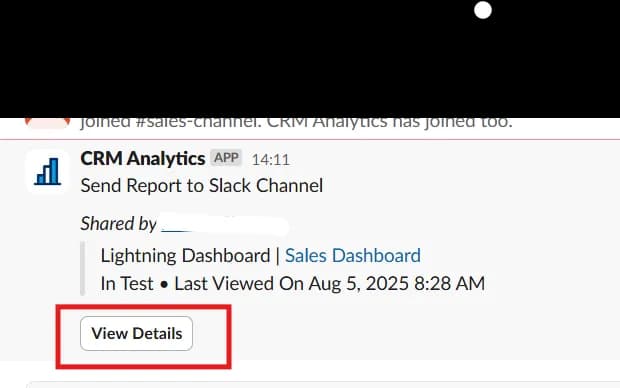
This integration lets you share Salesforce dashboards directly in Slack channels. It helps teams stay updated with important numbers and reports without switching between apps. You can also add messages and send dashboards to specific Slack users or channels, making it easier to talk about key business data quickly.
How to Set Up Slack in Your Salesforce Org
-
In the Quick Find box search for Slack Apps Setup and Select
-
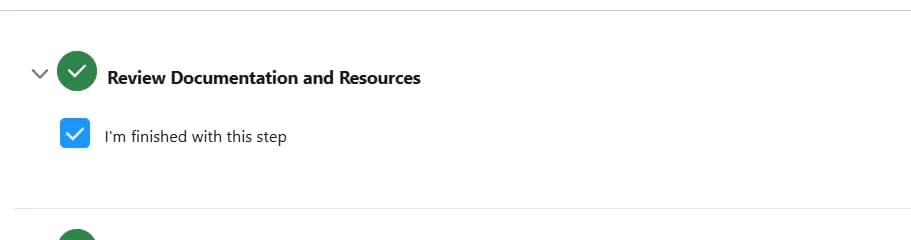
In Review Documentation and Resources section check mark the I'm finished with this step
-
Turn on the toggle for Agree to Terms and Conditions

-
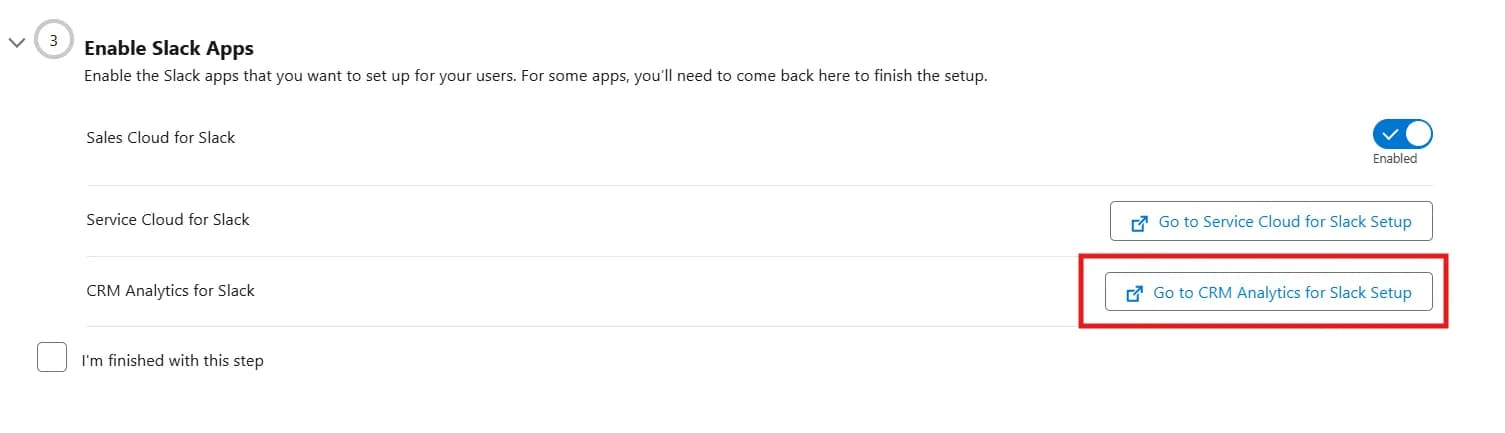
In the Enable Slack Apps turn on the toggle next to Sales Cloud for Slack
-
Click on Go to CRM Analytics for Slack Setup button
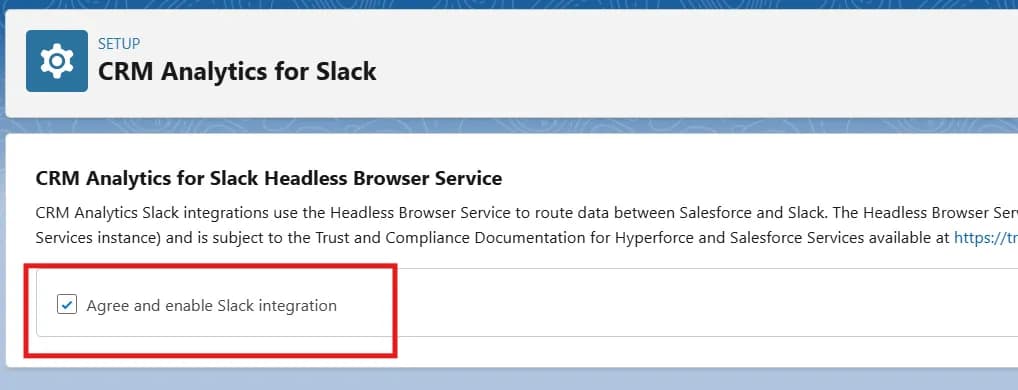
- Check the Checkbox next to Agree and enable Slack integration
- Click on Go to Permissions next to Sales Cloud for Slack Permissions
- Search for Sales Cloud for Slack permission set
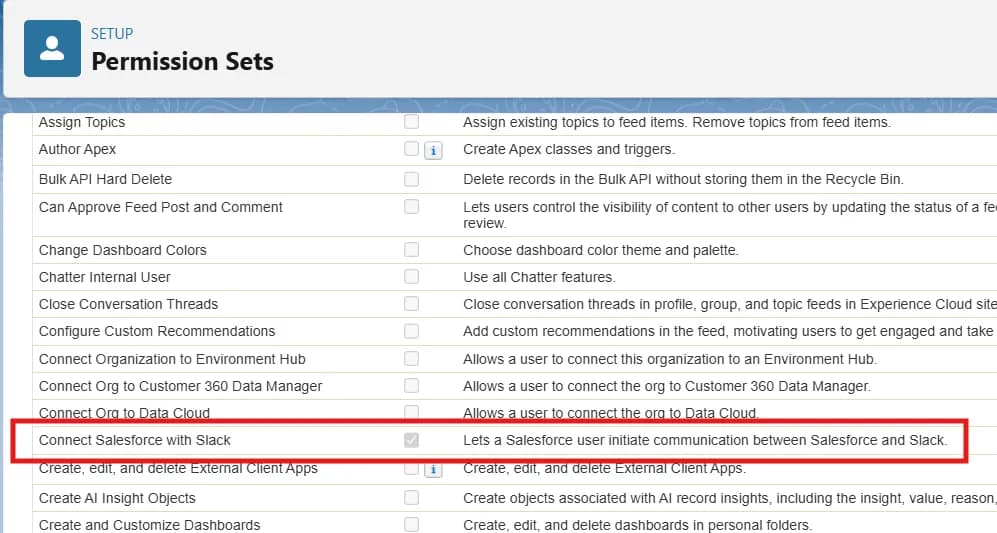
- In the permission set Go to System Permissions
- Now search for Connect Salesforce with Slack and enable if not.
- Assign permission set to System Admin
- Click on I'm finished with this step Checkbox
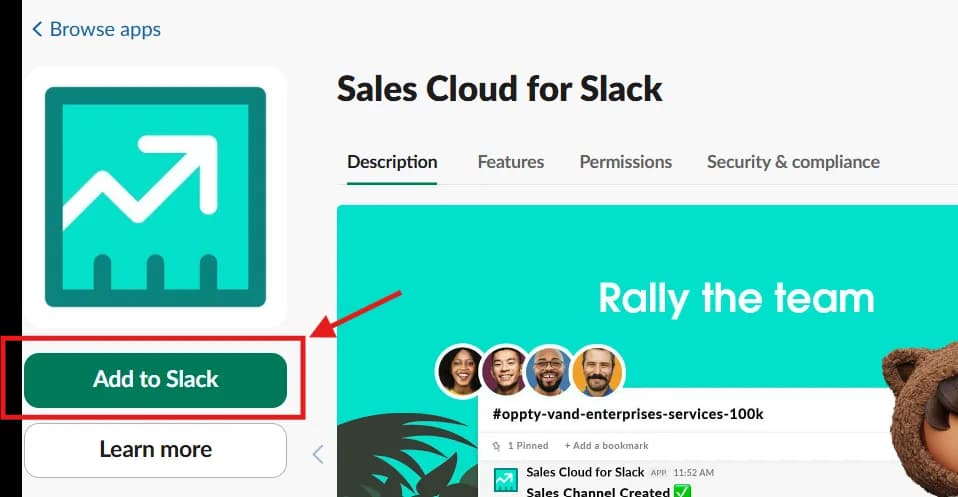
- In Install Slack Apps Section Install Sales Cloud for Slack
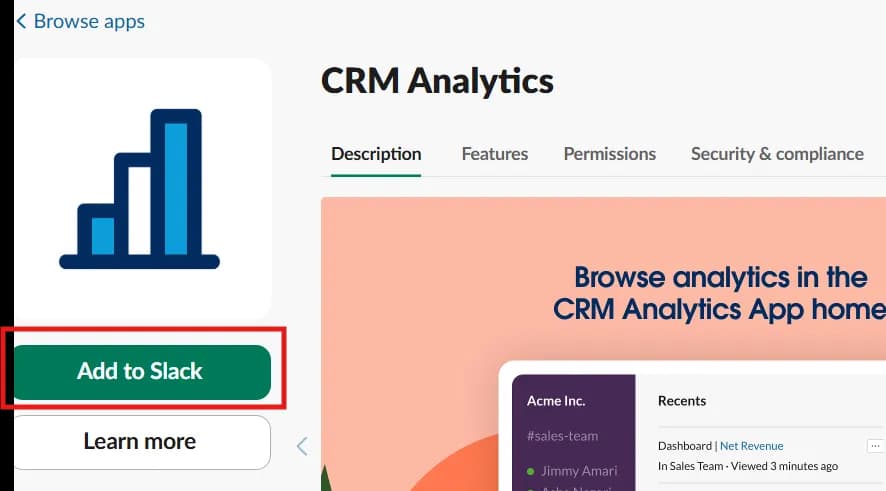
- Now Install CRM Analytics for Slack
-
Make sure you have a slack logged in same browser
-
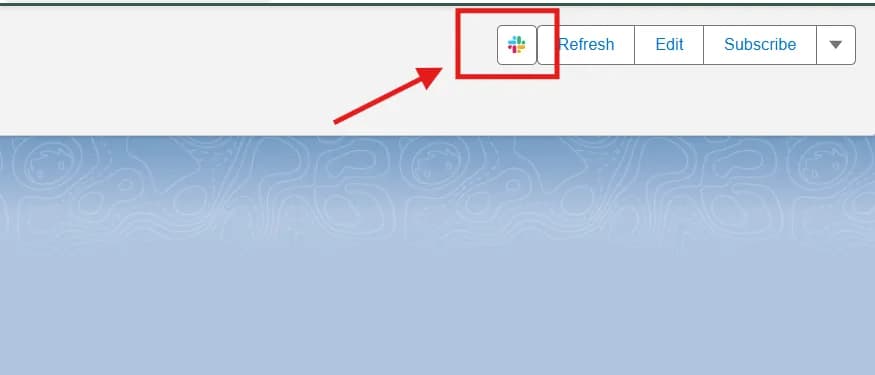
After installing the both apps you can go to the Dashboard
-
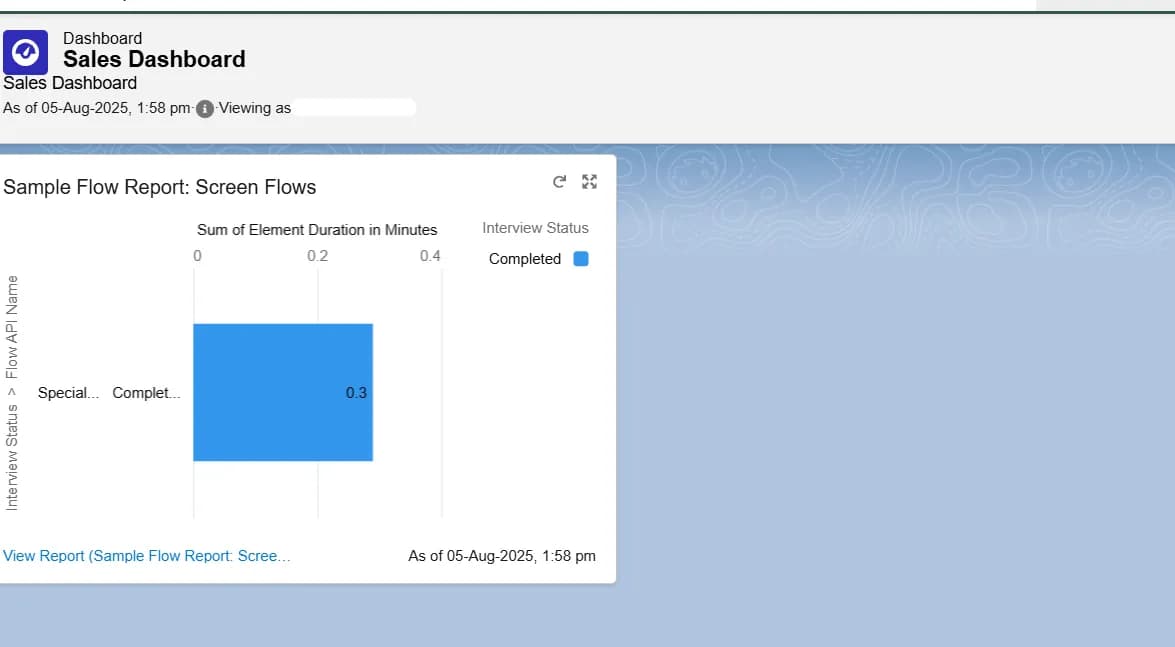
Create New Dashboard and Add the desired report charts to your dashboard, like this: