In this blog, we will learn how to integrate Salesforce with Teamup. Teamup is a cloud-based calendar and scheduling app that helps teams organize and share events, availability, and work. Salesforce is a tool that businesses use to keep track of their customers, improve how they work, and grow faster. It’s a cloud-based platform, meaning you can access it from anywhere with an internet connection. Companies use Salesforce to manage sales, support customers, run marketing campaigns, and organize their work better. It's popular because it helps businesses stay organized, save time, and build stronger relationships with their customers. There's no direct built-in connection between Salesforce and Teamup. But there are ways to link them and share information. So in this blog, we will learn how to link them and schedule the retrieval of sub-calendars and events every 5 minutes using Salesforce Apex and a scheduled job.
Steps to Integrate Teamup with Salesforce:
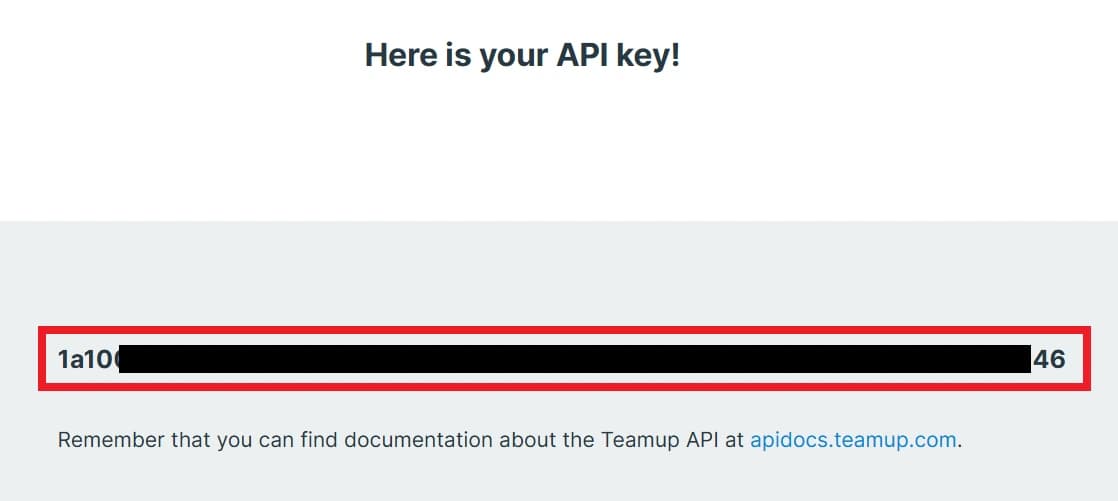
Step 1: Generate a Teamup API Key:
Firstly, go to the Teamup Login page then in Email fill your email address and in Organization fill your organization name.
Enter your detail at the places of bolded text and Save.
Now execute "TeamUpIntegration.bearerToken();" from an anonymous window, then open the log and copy authToken.
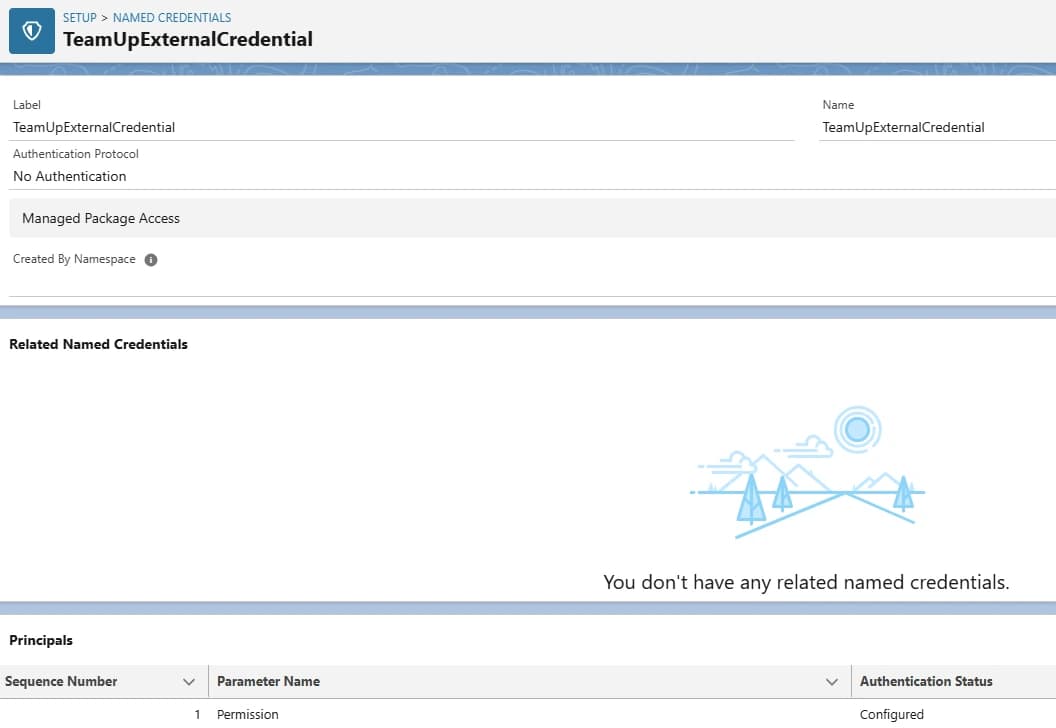
Step 3: Create Named Credential:
1. Go to Setup and search Named in the quick find box, then select Named Credentials.
2. In the External Credentials tab, click on the New button.
3. Fill in the below fields:
Field
Value
Label
TeamUpExternalCredential
Name
TeamUpExternalCredential
Authentication Protocol
No Authentication
Click Save.
4. Inside principals click on the New button.
5. Fill in the below fields:
Field
Value
Parameter Name
Permission
Sequence Number
1
Click Save
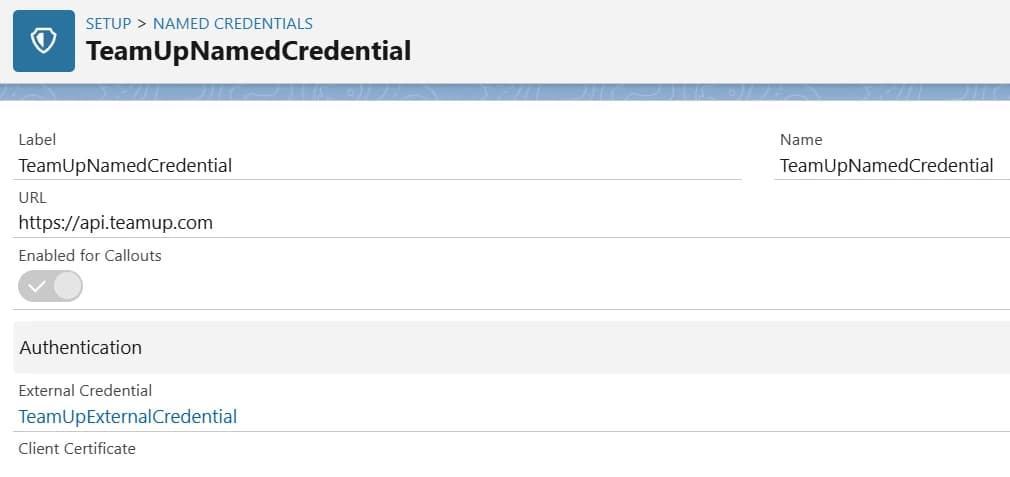
6. Search Named in the quick find box, then select Named Credentials.
7. In the Named Credentials tab, click on the New button.
8. Fill in the below fields:
Field
Value
Label
TeamUpNamedCredential
Name
TeamUpNamedCredential
URL
https://api.teamup.com
External Credential
TeamUpExternalCredential
Click Save.
9. Now, create three custom headers. Click the New button inside the Custom Headers section and fill in the details as shown below.
Name
Accept
Authorization
Teamup-Token
Value
application/json, text/html
Bearer {Your authToken}
{Your API Key}
Sequence Number
1
2
3
Now, we will assign permissions for external credentials to the user. Follow the steps below.
10. From Setup, in the Quick Find box, enter Permission Sets, and then select Permission Sets or enter Profiles, and then select Profiles.
11. Click the permission set or profile for which you want to enable user external credentials.
12. Take one of these steps.
For a permission set, under Apps, click Object Settings, and then click User External Credentials.
For a profile, scroll to Standard Object Permissions and then select User External Credentials.
13. Select the user external credential access that you want to give this permission set or user profile.
14. Save the settings.
Step 4: Get a collection of sub-calendars:
Now, we will insert all sub-calendars from Teamup into Salesforce and schedule it to run every 5 minutes, automatically inserting new sub-calendars in the future.
Firstly, we need to create a custom object in Salesforce to store the Teamup sub-calendar data.
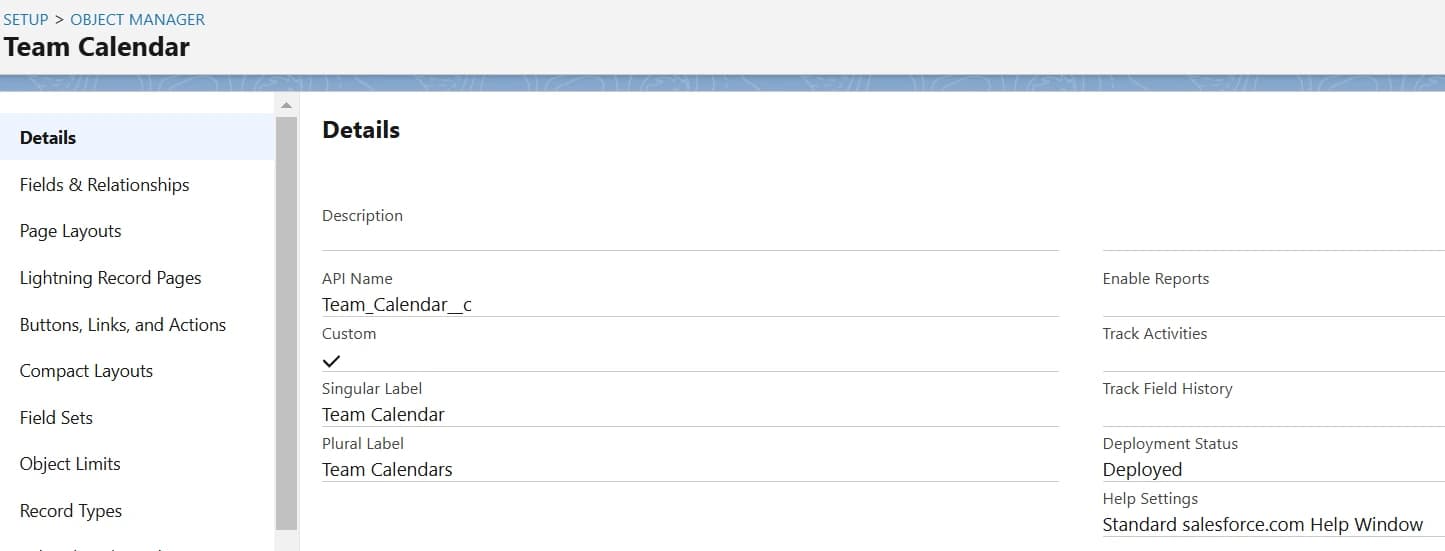
1. Go to Setup and inside the Object Manager tab click on Create | Custom Object.
2. Fill below data:
Field
Value
Label
Team Calendar
Plural Label
Team Calendars
Object Name
Team_Calendar
Record Name
Team Calendar Name
3. Check the box for Launch New Custom Tab Wizard after saving this custom object.
4. Click Save.
5. On the New Custom Object Tab page, click the Tab Style field and select a style you like. The style sets the icon to display in the UI for the object.
6. Click Next, Next, and Save.
Free newsletter
Get Salesforce insights delivered weekly
Join 500+ Salesforce professionals and stay ahead of the curve.
No spam. Unsubscribe any time.
Now we can create a field on the team calendar object.
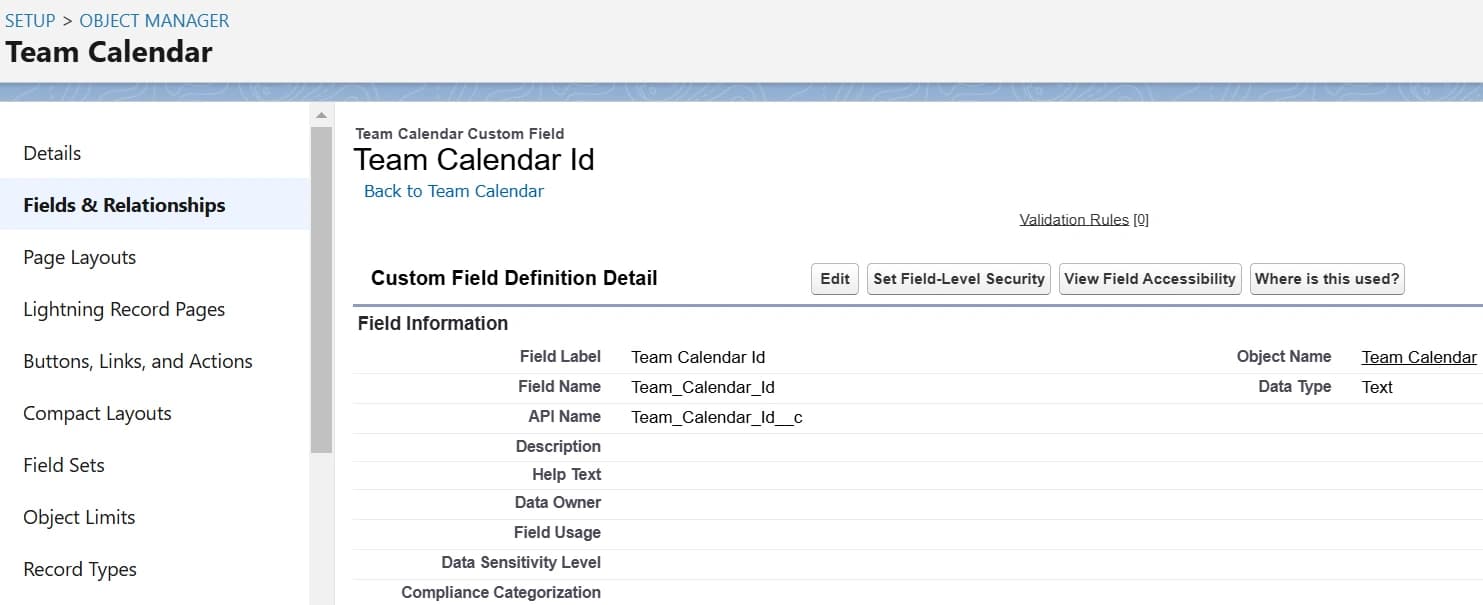
1. Go to Setup > Object Manager > Team Calendar object > Fields & Relationships > New button.
2. Select Text as the data type.
3. Fill below data:
Field Label
Team Calendar Id
Length
255
Field Name
Team_Calendar_Id
Unique
check
External ID
check
click Next, Next, and Save.
Now, we create a new method inside TeamUpIntegration class name insertSubCalendars.
Modify insertSubCalendars method with the following code:
Now create a new schedulable class name TeamUpSubCalendarsSchedulable.
Modify the TeamUpSubCalendarsSchedulable file with the following code:
TeamUpSubCalendarsSchedulable.apxc
global classTeamUpSubCalendarsSchedulableimplementsSchedulable{ global voidexecute(SchedulableContextSC){String jobID =System.enqueueJob(newTeamUpSubCalendarsQueueable());}}
To schedule the TeamUpSubCalendarsSchedulable class to run every 5 minutes, execute the following code in the Anonymous Window:
for(Integer i =0; i <60; i = i+5){String cronString ='0 '+ i + ' ***?';String scheduledJobName = 'TeamUpSubcalendarIntegration' + '-'+ 'Every ' + i + ' minute';System.schedule(scheduledJobName, cronString,newTeamUpSubCalendarsSchedulable());}
Step 5: Insert Collection of Events in Salesforce:
Now, we will insert events of two days from Teamup into Salesforce and schedule it to run every 5 minutes, automatically inserting new events in the future.
startDate: string<date> (Optional)
The start of the date range to list events from, in YYYY-MM-DD format. If not specified this defaults to today
endDate: string<date> (Optional)
The end of the date range to list events from (inclusive), in YYYY-MM-DD format. If not specified this defaults to tomorrow
{"events":[{"id":"string","subcalendar_ids":[],"subcalendar_remote_ids":null,"start_dt":"string","end_dt":"string","all_day":false,"rrule":"","creation_dt":"string","update_dt":"string","delete_dt":"2019-08-24T14:15:22Z","tz":"string","version":"string","remote_id":"string","series_id":0,"ristart_dt":"string","rsstart_dt":"string","attachments":[{"id":"string","name":"string","size":0,"mimetype":"string","upload_date":"2019-08-24T14:15:22Z","thumbnail":"https://example.com/{keyId}/attachments/{attachmentId}}/thumbnail/file.jpg?hash={hash}","link":"https://example.com/{keyId}/attachments/{attachmentId}}/file.jpg?hash={hash}","preview":"https://example.com/{keyId}/attachments/{attachmentId}}/preview/file.jpg?hash={hash}&size={size}"}],"title":"string","location":"string","who":"string","readonly":true,"signup_enabled":true,"signup_deadline":"2019-08-24T14:15:22Z","signup_visibility":"all_users","signup_limit":0,"comments_enabled":true,"comments_visibility":"all_users","custom":{"field1":"value","choicefield":["a","b"]},"comments":[{"id":35081,"event_id":"53809 or 53809-rid-1728574025","name":"Peter","email":"peter@example.org","message":"\\u003Cp\\u003EHi Mark, I need a projector for my presentation. Thanks\\u003C\\/p\\u003E","remote_id":"string","creation_dt":"2019-08-24T14:15:22Z","update_dt":"2019-08-24T14:15:22Z","updater":"Peter"}],"signups":[{"id":4930,"event_id":53809,"name":"Mark","email":"mark@example.org","remote_id":"string","creation_dt":"2019-08-24T14:15:22Z","update_dt":"2019-08-24T14:15:22Z","email_hash":"eb88aebd18089396d068a498a66dd7fe"}]}],"timestamp":0}
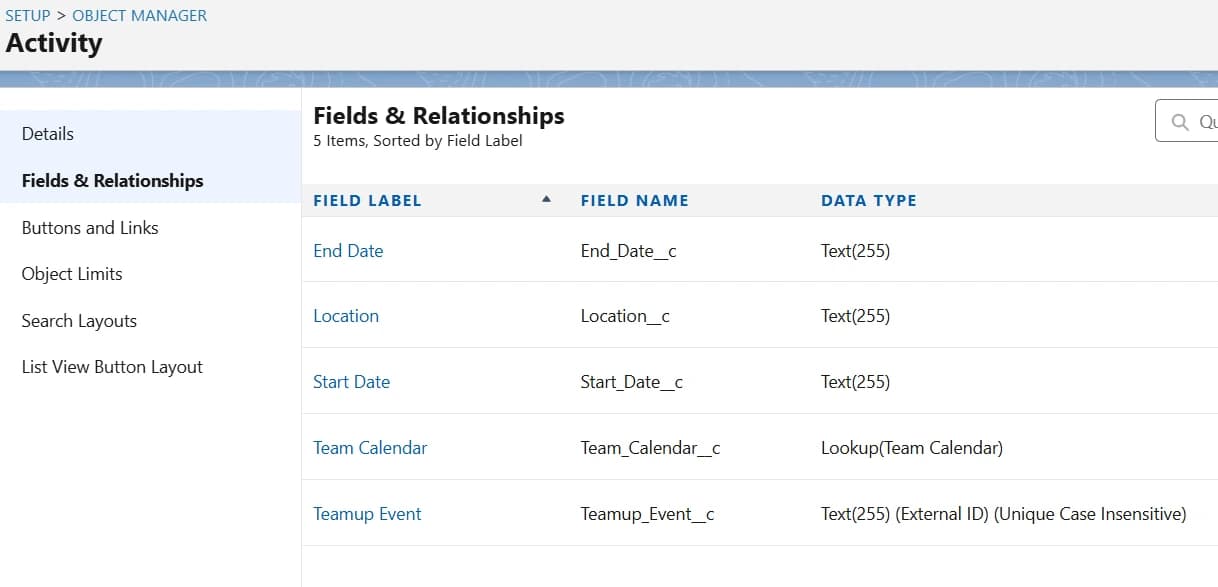
First, we create new fields on the Task object where we can store our data. To create these fields, follow the steps below:
1. Go to Setup > Object Manager > Activity Object > Fields & Relationships > New button.
2. Create below five fields:
Field
End Date
Location
Start Date
Team Calendar
Teamup Event
Data Type
Text
Text
Text
Lookup(Team Calendar)
Text
Field Label
End Date
Location
Start Date
Team Calendar
Teamup Event
Length
255
255
255
NONE
255
Field Name
End_Date__c
Location__c
Start_Date__c
Team_Calendar__c
Teamup_Event__c
External ID
False
False
False
False
True
Unique
False
False
False
False
True
click Next, Next, and Save.
Now, we create new methods inside TeamUpIntegration class. These methods are as follows:
Now create a new schedulable class name TeamUpEventsSchedulable.
Modify the TeamUpEventsSchedulable file with the following code:
TeamUpEventsSchedulable.apxc
global classTeamUpEventsSchedulableimplementsSchedulable{ global voidexecute(SchedulableContextSC){String jobID =System.enqueueJob(newTeamUpEventsQueueable());}}
To schedule the TeamUpEventsSchedulable class to run every 5 minutes, execute the following code in the Anonymous Window:
for(Integer i =0; i <60; i = i+5){String cronString ='0 '+ i + ' ***?';String scheduledJobName = 'TeamUpEventIntegration' + '-'+ 'Every ' + i + ' minute';System.schedule(scheduledJobName, cronString,newTeamUpEventsSchedulable());}
How our integration works:
1. To link a Teamup event with a contact in Salesforce:
First, create the contact in Salesforce and fill in the Email or Phone field.
2. Next, create an event in Teamup and enter all the necessary details.
In the Who field, provide either the Email or Phone of the contact.
3. For example, if you enter an Email in the Who field in Teamup, and a contact with that email exists in Salesforce, our automation will create a task linked to that contact.
4. If no contact is found with the specified email or phone, our automation will still create the task, but it will not be linked to any contact.