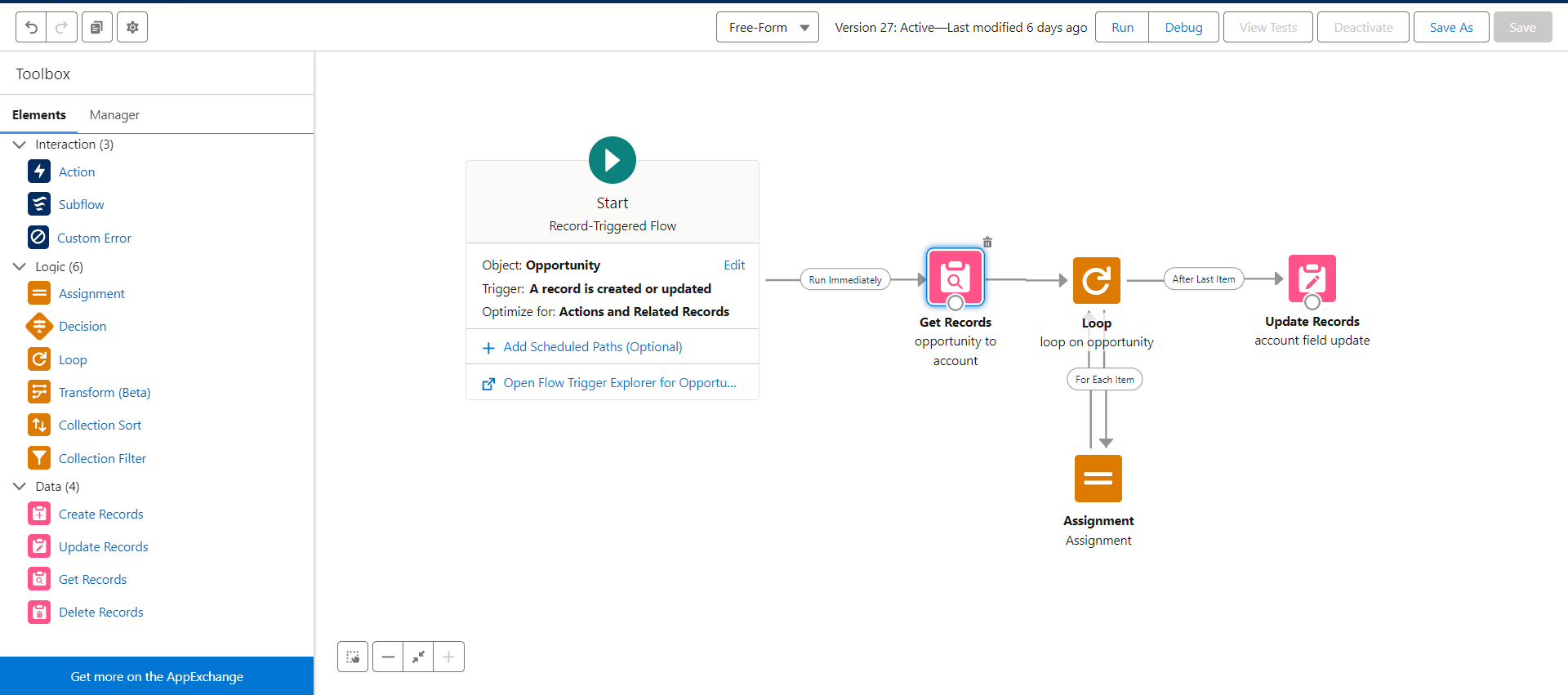

After completing this unit, you will be able to:
1. Introduction
2. What is Record-Triggered Flow
3. Create a Record Trigger Flow
1.Introduction
As businesses evolve and user expectations soar, the demand for robust automation solutions has never been higher. Enter Record-Triggered Flows, a game-changing feature within the Salesforce ecosystem that empowers organizations to streamline processes, enhance user experiences, and elevate overall operational efficiency. Discover how this versatile tool empowers you to automate complex business processes, respond dynamically to record changes, and elevate the efficiency of your Salesforce implementation.
In this blog, we embark on a journey into the intricacies of Record-Triggered Flows, unraveling their potential to revolutionize the way we approach automation in Salesforce. Whether you're a seasoned Salesforce administrator seeking to optimize workflows or a curious newcomer eager to harness the full capabilities of the platform, join us as we delve into the why, what, and how of Record-Triggered Flows.
2.What is Record-Triggered Flow
In Salesforce, a Record-Triggered Flow for Account Creation and Updates is a sophisticated automation solution designed to streamline and enhance the management of account records within the platform. This dynamic tool responds intelligently to specific events, automating processes associated with the creation of new accounts and the modification of existing ones.
3. Create a Record Trigger Flow
1. Access Flow Builder
- Log in to your Salesforce instance.
- Go to setup and search for flows then click on the Flows.
2. Create a New Flow
- Click on New Flow button at top right corner.
- Choose Record-Triggered Flow based on your requirements and then click on the Create button..
3. Record trigger flow
- object : Opportunity
- Trigger the Flow When: A record is created and updated
- Optimize the Flow for: Actions and Related Record
- Click done.
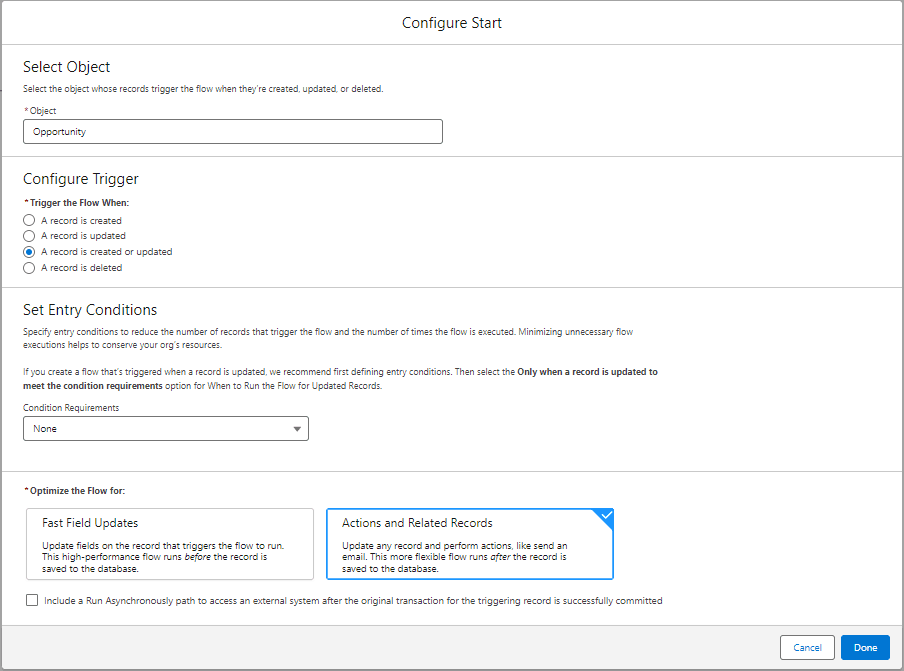
- Then Drag Get Record Element.
4. Get Record Element
- Label: Fill the Name of Get Record Element
- API Name: Make sure API Name is automatically filled.
- object: Opportunity
- Filter Opportunity Records
- Condition Requirements: All Conditions Are Met (AND)
- Field: AccountId
- Operator: Equals
- Value: {!$Record.AccountId}
- How Many Records to Store: All records
- How to Store Record Data: Automatically store all fields
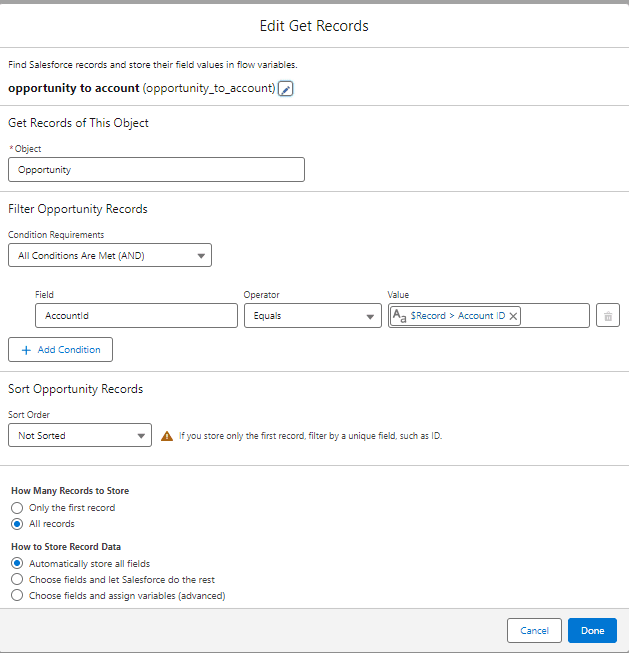
- Get Record Elements are Connected to the Record Trigger flow.
- Then Drag Loop Element.
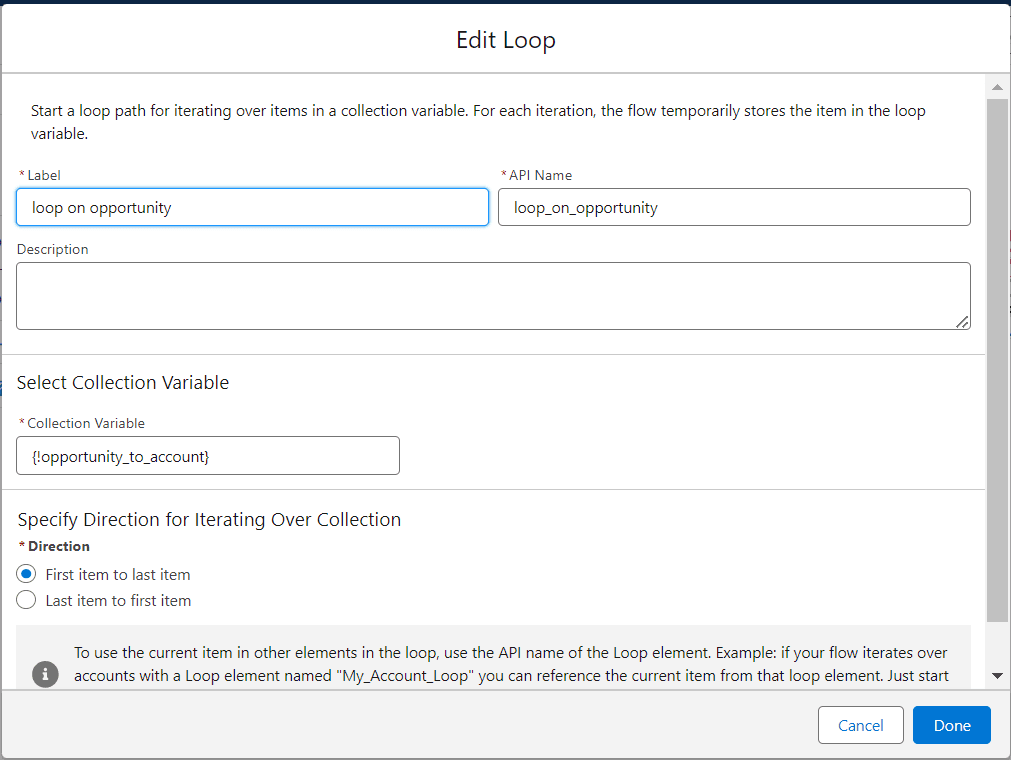
5. Loop Element
-
Label: Fill the Name of Loop Element
-
API Name: Make sure API Name is automatically filled.