
After completing this unit, you will able to:
1. Introduction
2. What is Email-To-Lead
3. Add Picklist Value of Lead and Case
4. Setup Email service
5. Create Flow
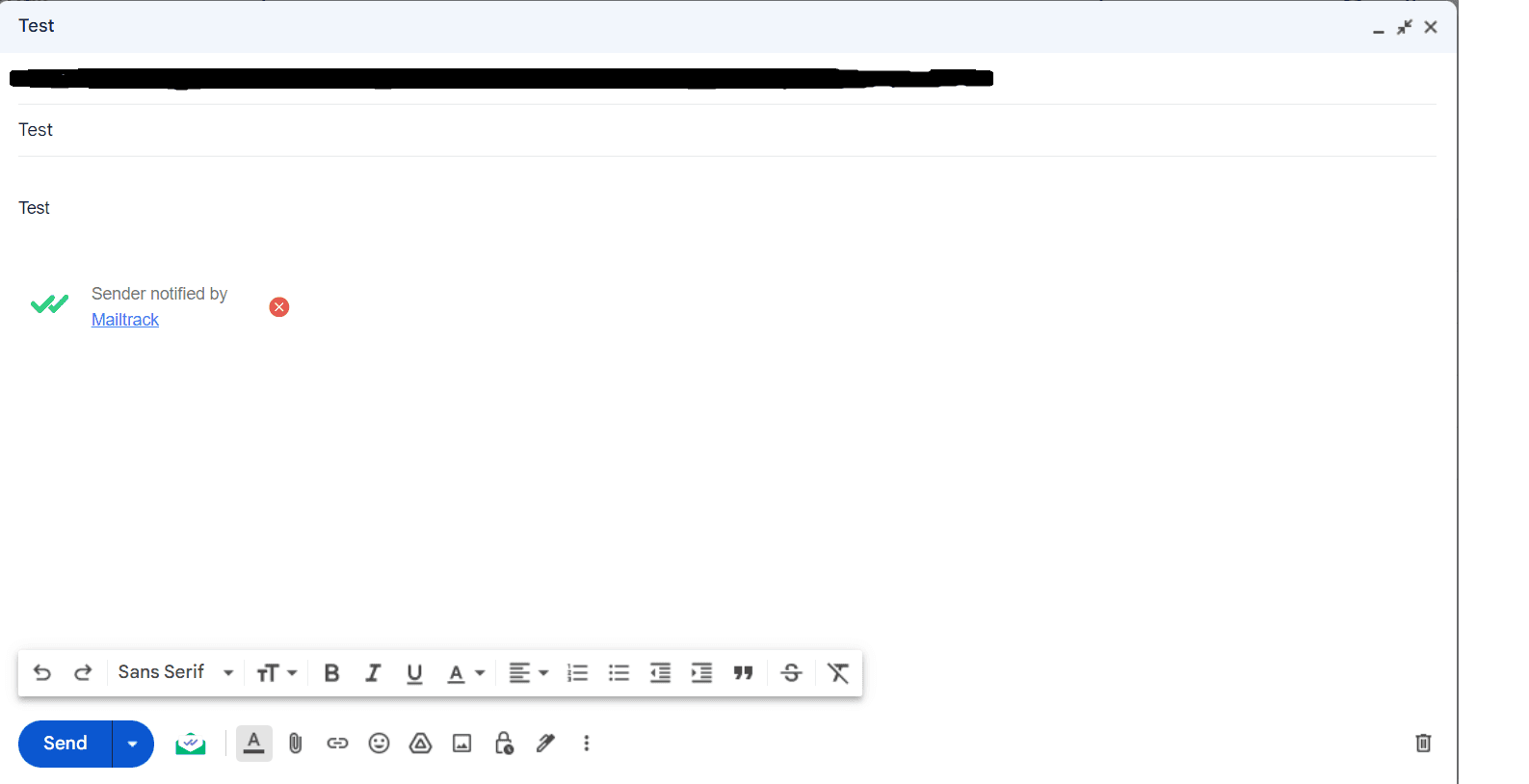
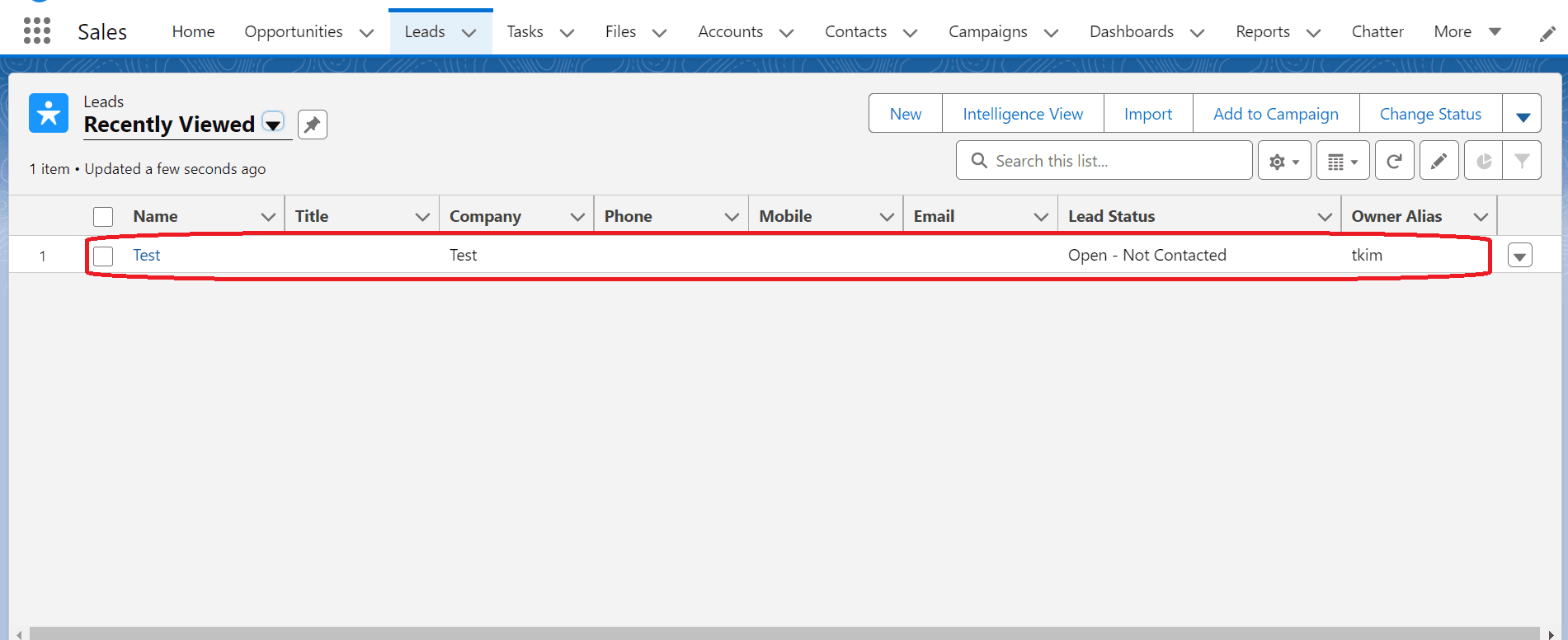
6. Test Your Email Service
1. Introduction
Email-to-Lead is a feature in Salesforce that allows businesses to capture leads and potential customers directly from incoming emails. This feature streamlines the lead generation process by automatically converting relevant email inquiries into leads within the Salesforce platform.
2. What is Email-To-Lead
In Salesforce, Email-to-Lead is a feature that allows businesses to automatically create lead records in their Salesforce organisation from incoming emails. This feature is particularly useful for capturing and managing potential sales leads generated through email communication. When an email is received at a specified email address, Salesforce can automatically parse the email content and create a lead record with relevant information, such as the sender's contact details and any other data included in the email.
Email-to-Lead simplifies the lead generation process by eliminating the need for manual data entry. It helps businesses respond quickly to inquiries and potential leads,ensuring that important opportunities are not missed. Once the lead records are created, they can be assigned to sales representatives for follow-up, nurturing, and potential conversion into customers.
3. Add Picklist Value on Case and Lead:
For Case Object:
1. Click on setup.
2. From Object Manager, Select the type Case.
3. Select the Fields & Relations, then click New.
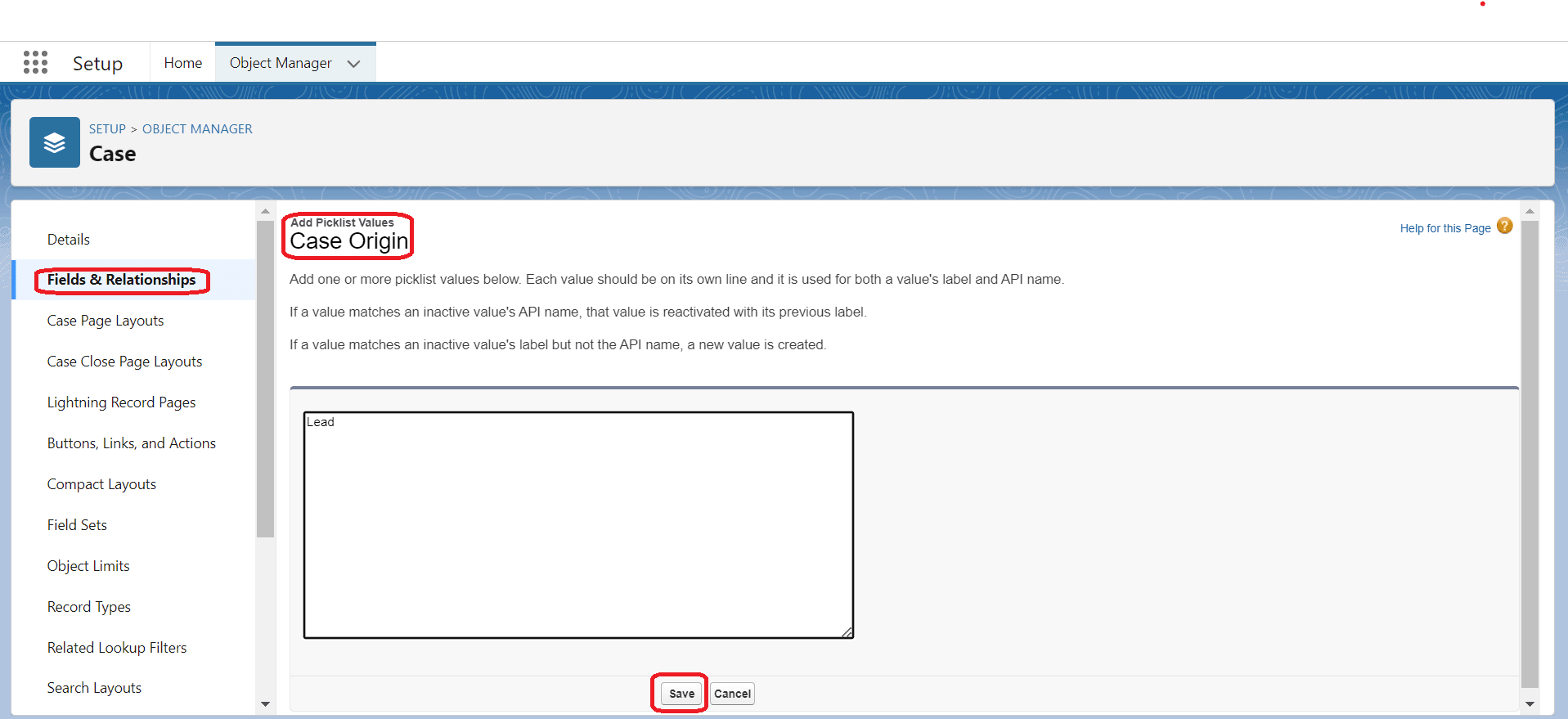
4. Click on the Case Origin field.
5. Navigate to the Case Origin Picklist and click the New button.
6. Add a new value Lead, if you have any record type make sure to select the relevant record type.
7. Click on Save button.
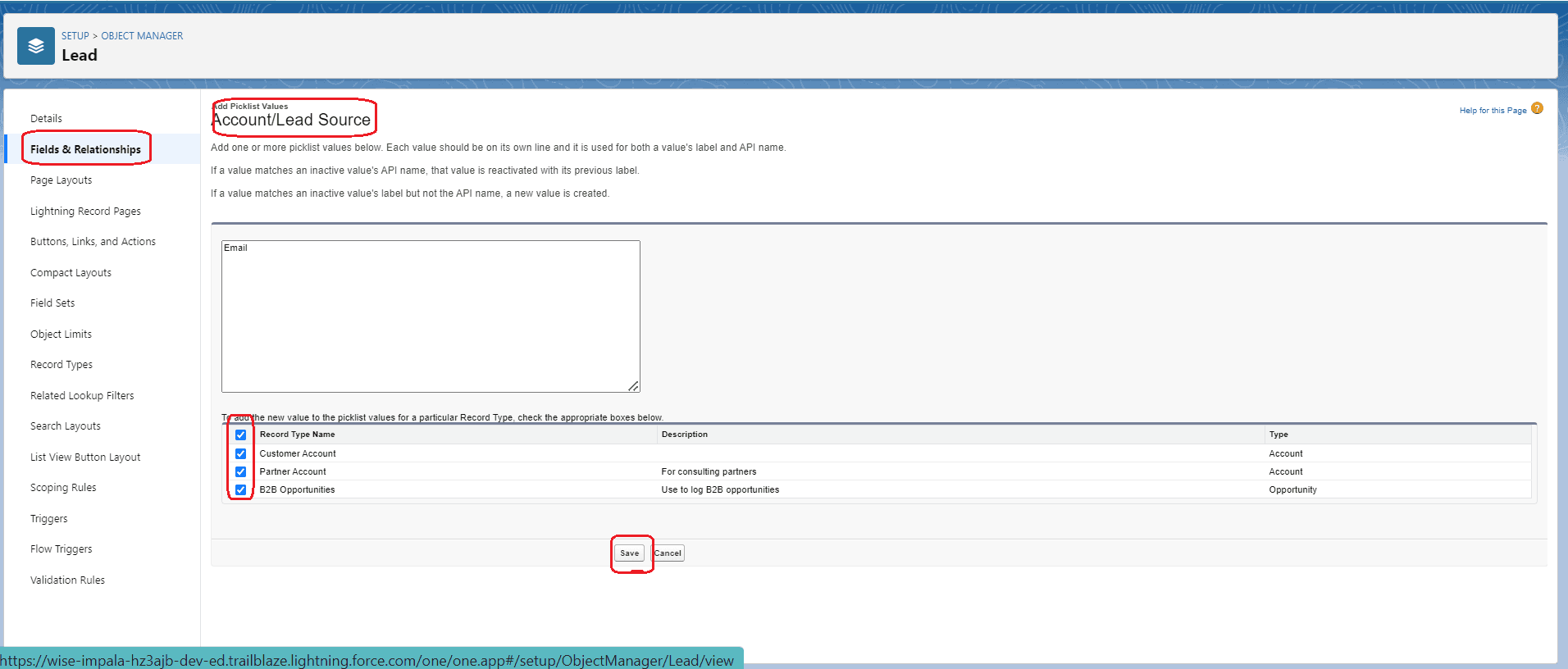
For Lead Object:
1. Click on setup.
2. From Object Manager, select Lead object.
3. Click the Fields & Relationships.
4. Click on the Lead Source field.
5. Navigate to the Account/Lead Source Picklist Values and click the New button.
6. Add a new value Email, if you have any record type make sure to select the relevant record types.
7. Click on Save button.
4. Setup Email service:
See our guide: How to Set Up Email to Case in Salesforce.
5. Create Flow:
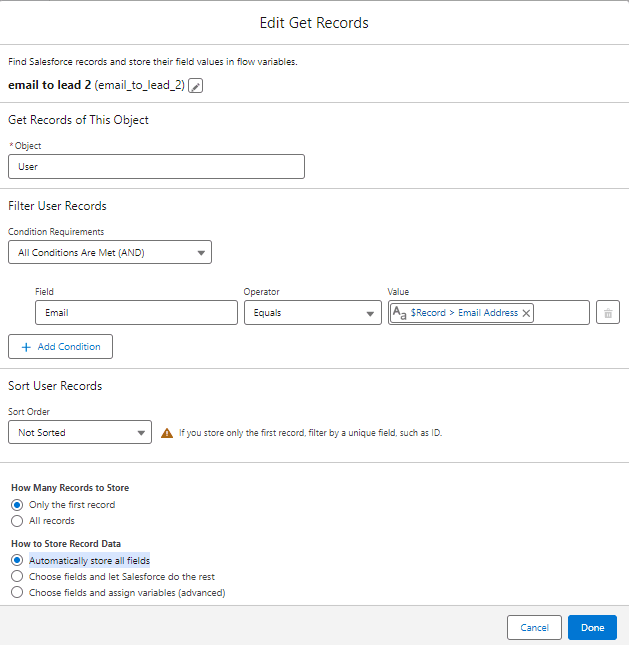
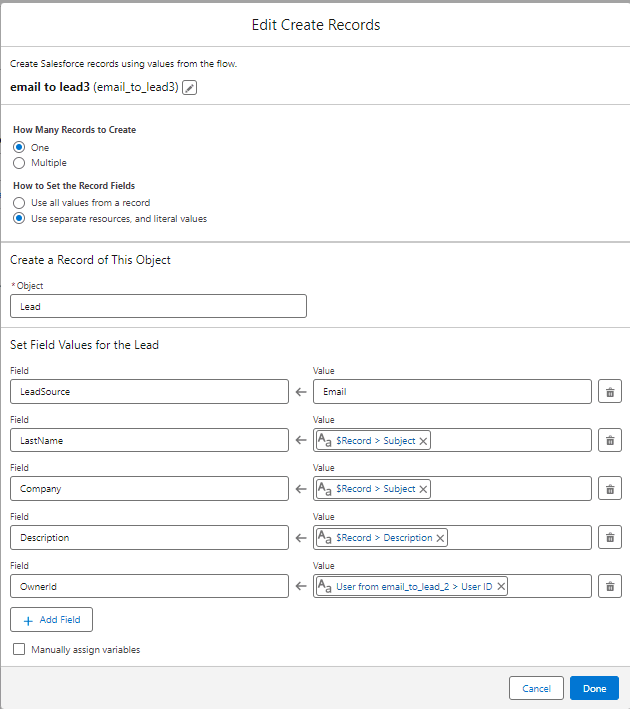
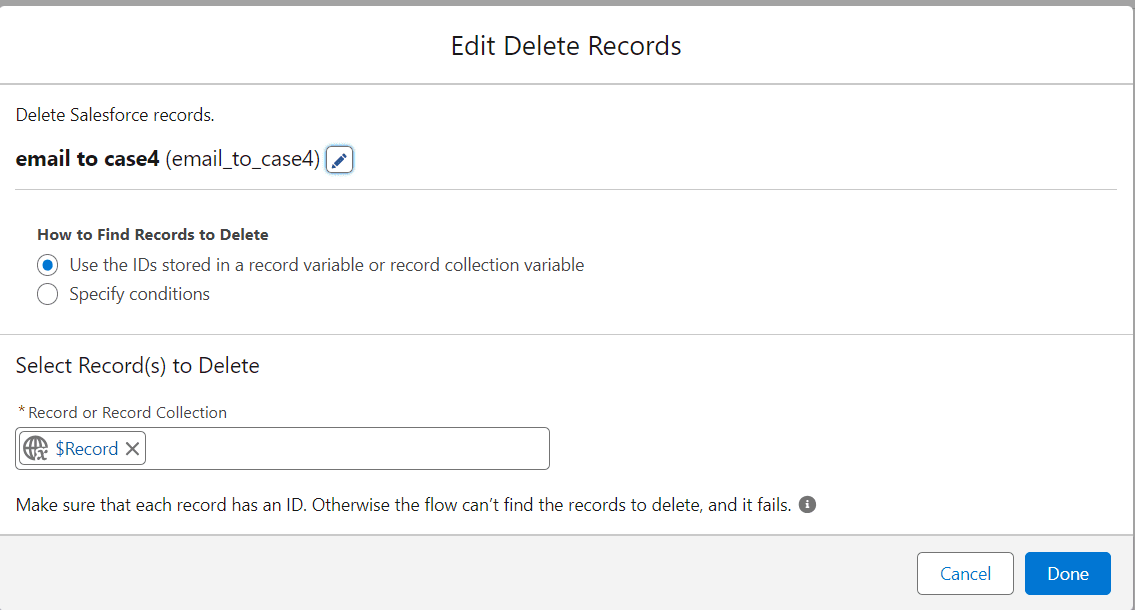
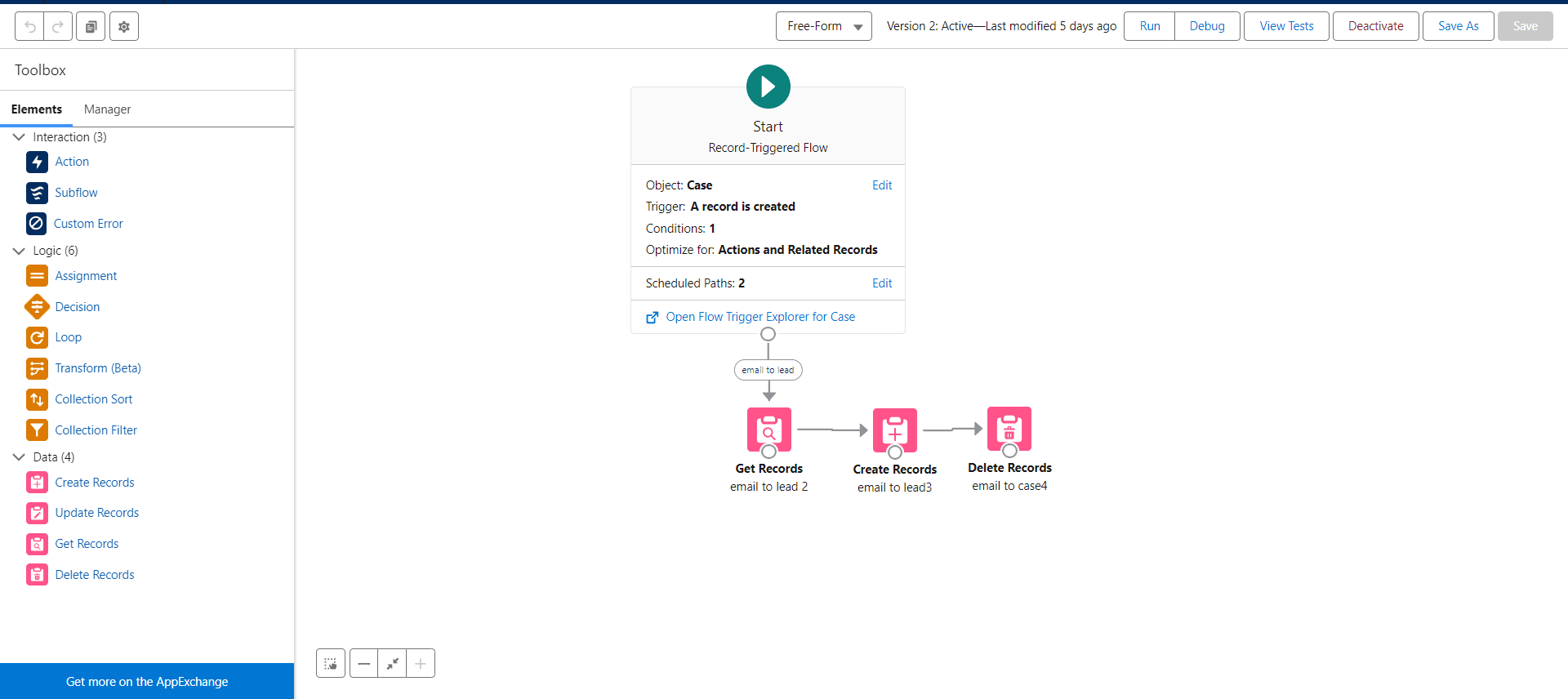
Now we will create Record-Trigger flow.
Define Flow Properties:
1. Click on setup Button.
2. In the Quick Find Box, search Flows.
3. Click Flows, and Click New Flow.
4. Select Record-Triggered Flow ,Click on Create Button.
5. Make sure you select Free-Form from Top of the Flow.
Set up Record Trigger Details:
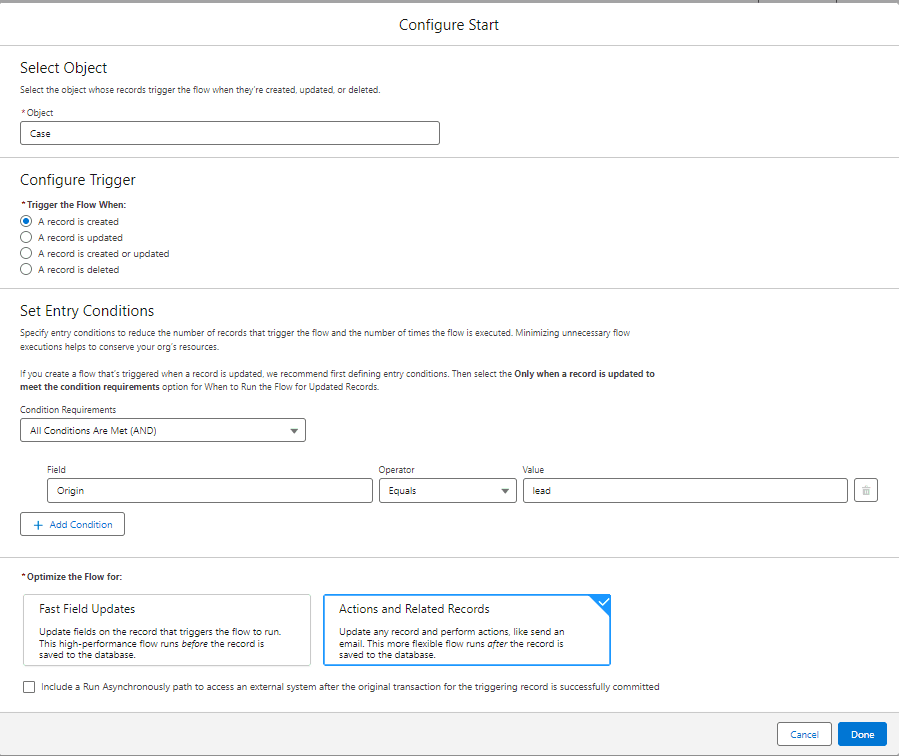
Now we need to set up the details of trigger record (Case Record) and make sure you have selected the information like the below steps:
1. Object: Case
2. Trigger the Flow When: A Record is Created
3. Set Entry Conditions:
Condition Requirements: All Condition Are Met (AND)