Introduction
Apollo.io is a platform designed to make life easier for sales and marketing teams. It helps them find and connect with the right people, so they can focus on building real relationships instead of wasting time chasing dead ends.
In sales and marketing, a lot of time gets wasted doing the same tasks over and over, like sending follow‑up emails or updating records. That’s where Apollo.io makes things easier. It has a feature called Workflows that takes care of these repetitive jobs for you automatically.
In this blog, I’ll break down what Workflows are, why they matter, and how you can set one up step by step inside Apollo.io. Don’t worry if you are new, this guide is written in a beginner friendly way so you can start automating your outreach without any confusion.
What is a Workflow in Apollo?
A Workflow in Apollo.io is like a smart helper that takes care of tasks for you automatically. Instead of doing the same things over and over, you can set rules so Apollo knows what to do when certain events happen.
For example:
- When a new contact is added.
- Automatically send an email.
- Assign the contact to a sequence.
- Update a field or status.
Why Use Workflows in Apollo?
- Save time.
- Reduce manual work.
- Improve follow-up consistency.
- Help manage leads efficiently.
- Automate repetitive sales tasks.
Prerequisites
- Apollo account.
- A Sequence already created.
- LinkedIn account connected with Apollo.
- Permission to use Workflows.
Find Workflows in Apollo
- Log in to your Apollo.io account.
(Log in to your Apollo.io account at app.apollo.io)
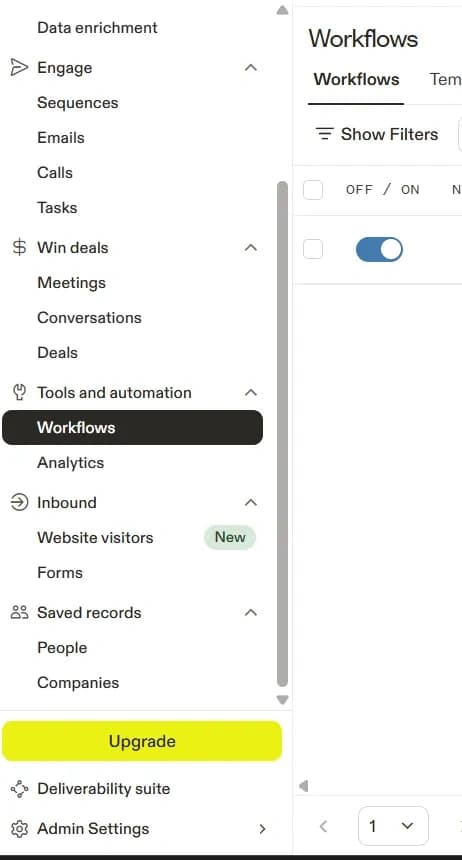
- After login , Go to the left-side navigation menu.
- Click on Workflows.
Basic Components of a Workflow
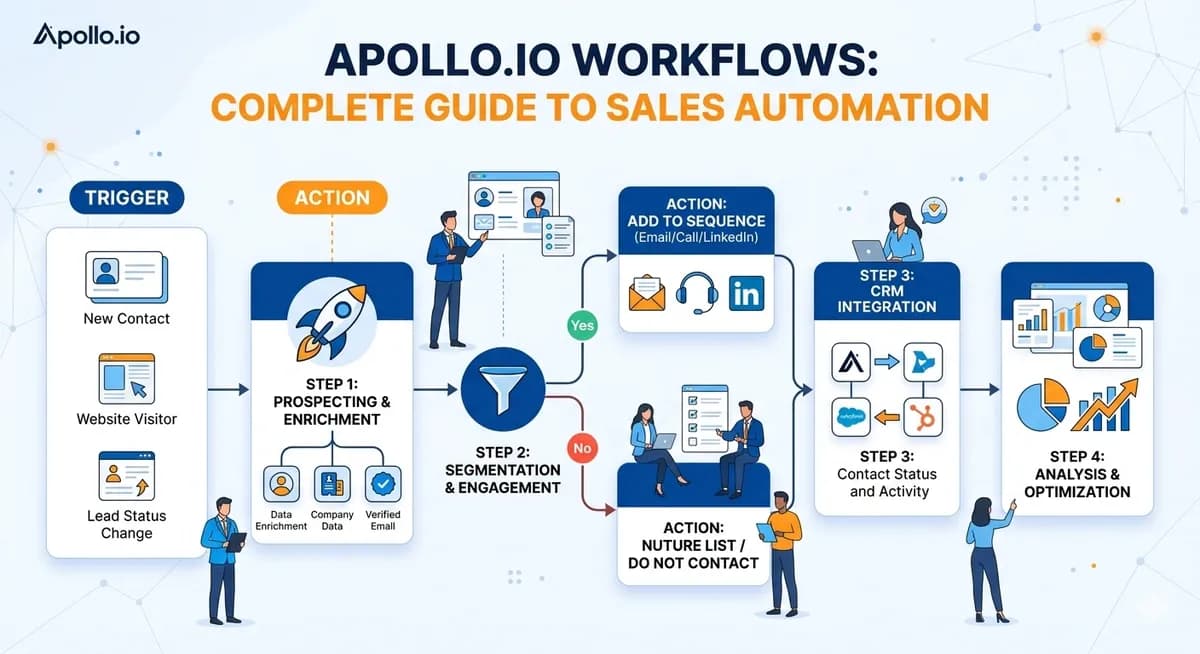
Before you build a workflow in Apollo.io, it helps to know its basic building blocks. Think of a workflow as a set of rules that tell Apollo when to do something, who it should apply to, and what action to take.
Here are the main parts:
1. Trigger
-
This is what starts the workflow. It’s like saying, “When this happens, begin.”
Example:
- Contact is created
- Contact status changes
- Contact is added to a list
2. Conditions
-
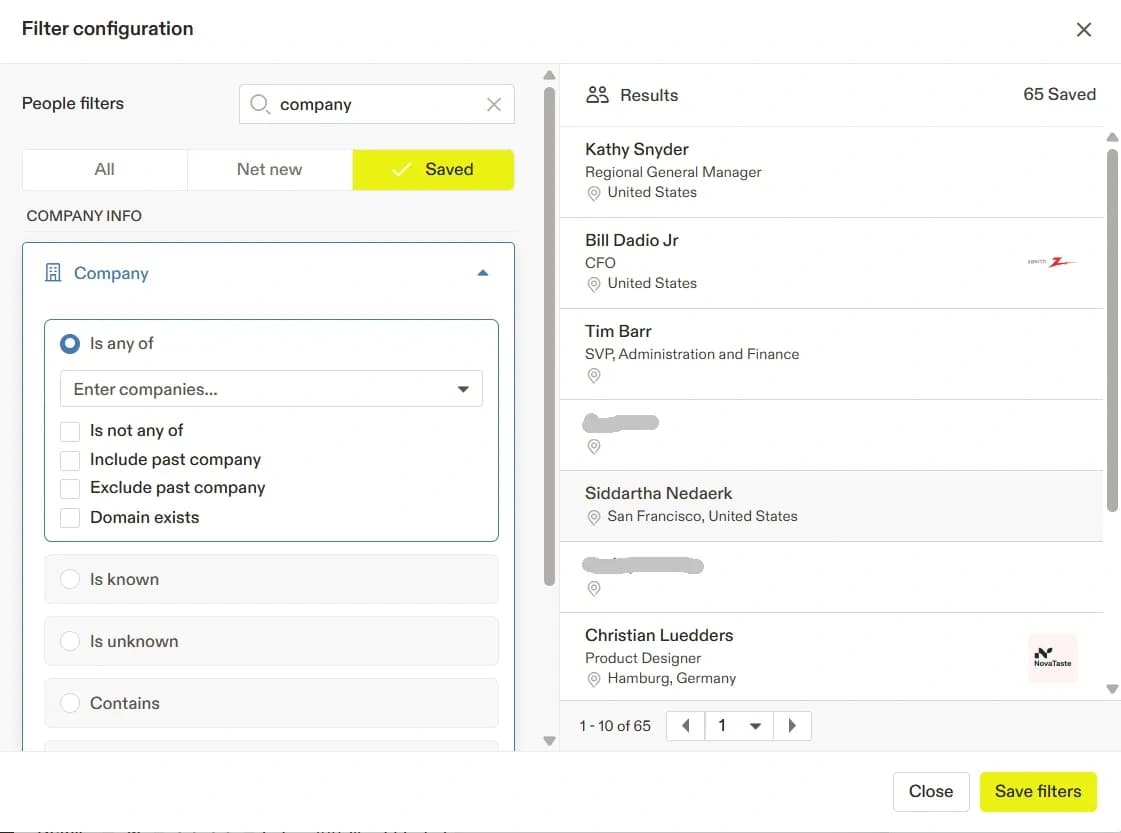
Conditions act like filters. They decide which contacts should go through the workflow.
Example:
- Contact country is India.
- Job title contains Manager.
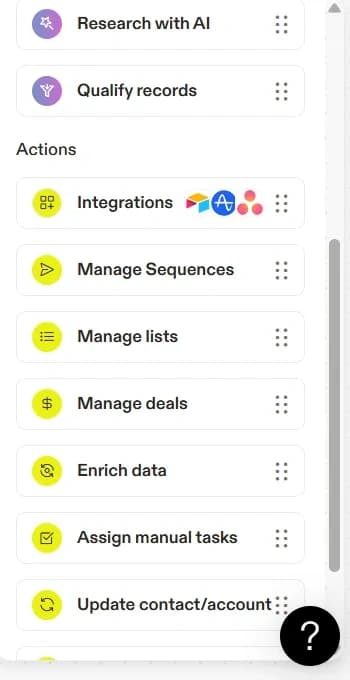
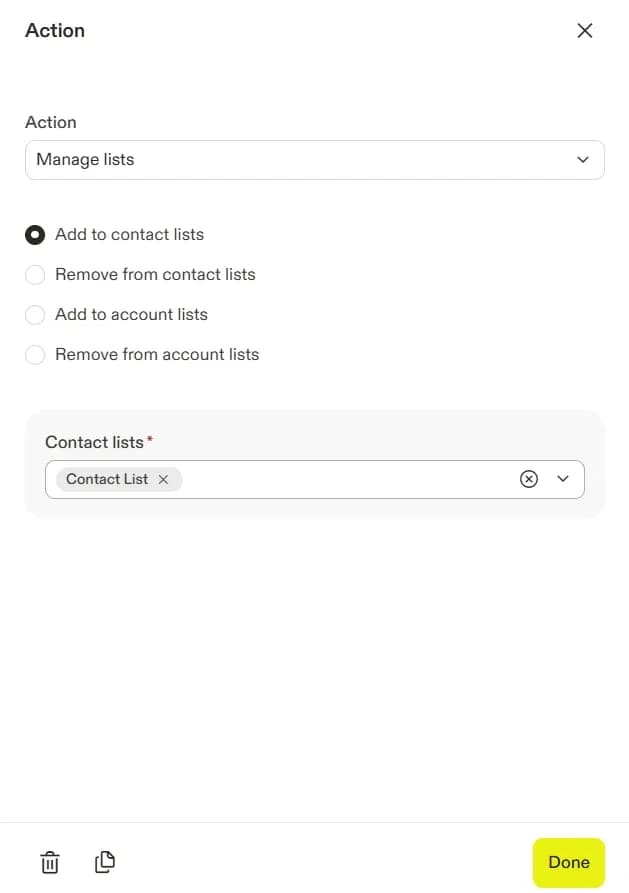
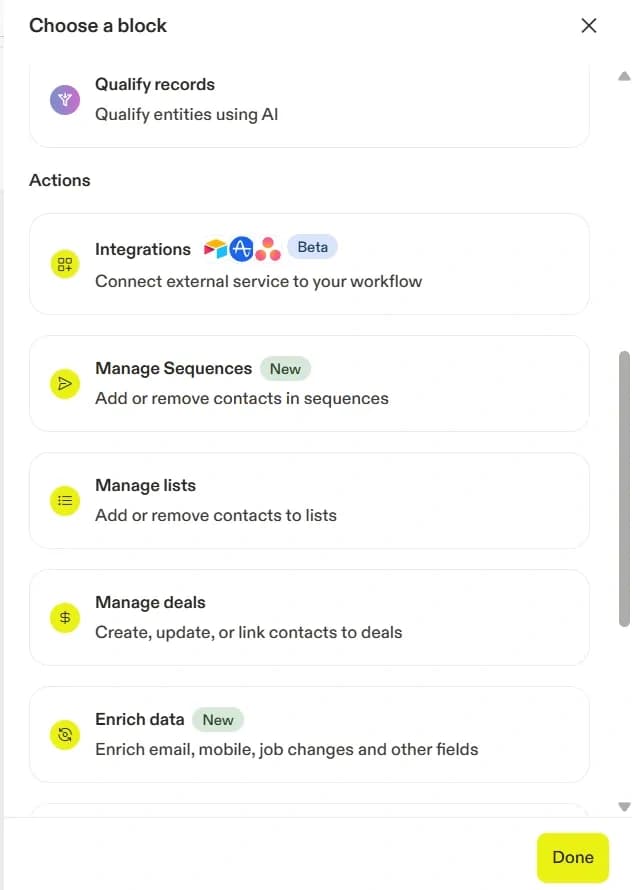
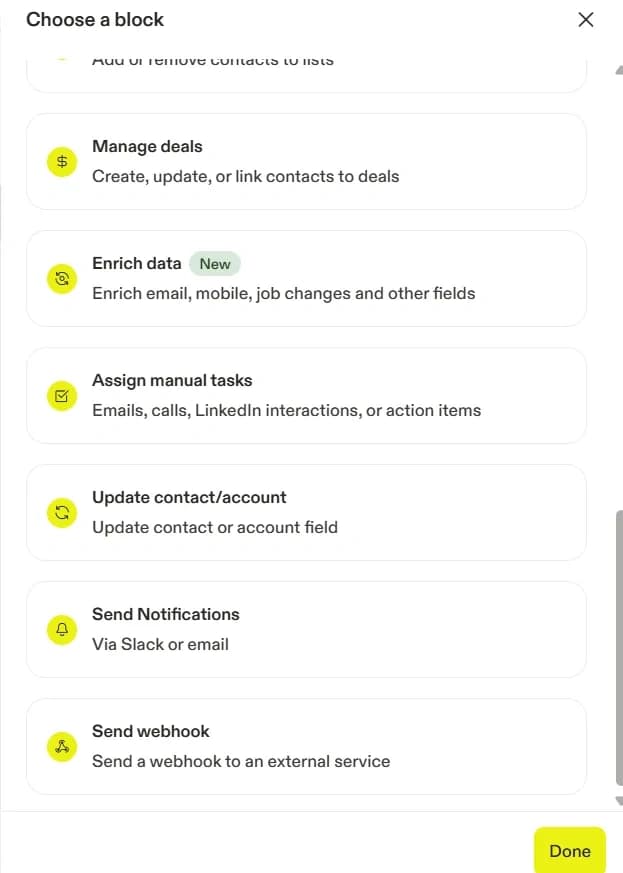
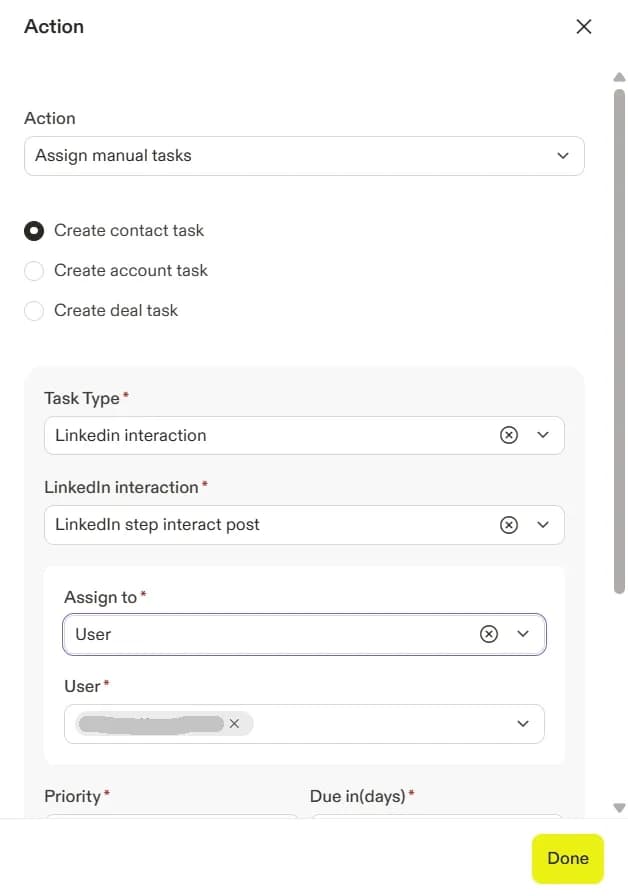
3. Actions
-
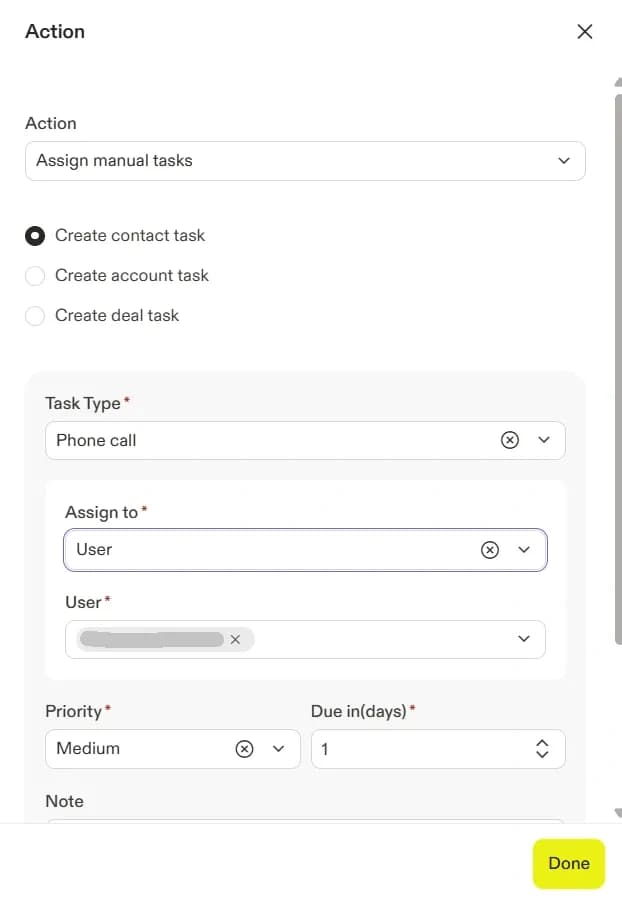
These are the tasks Apollo does automatically once the trigger and conditions are met.
Example:
- Send an email
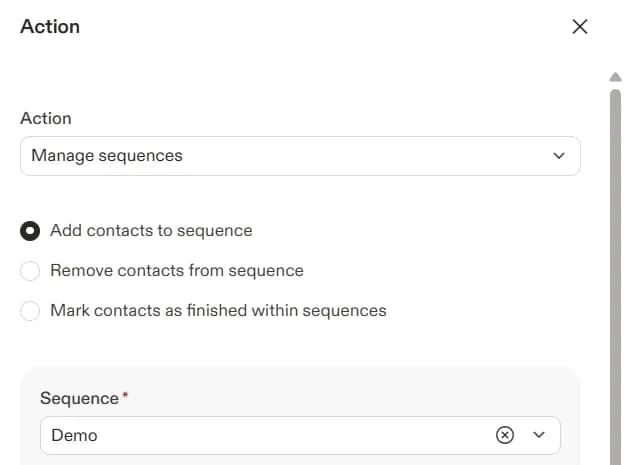
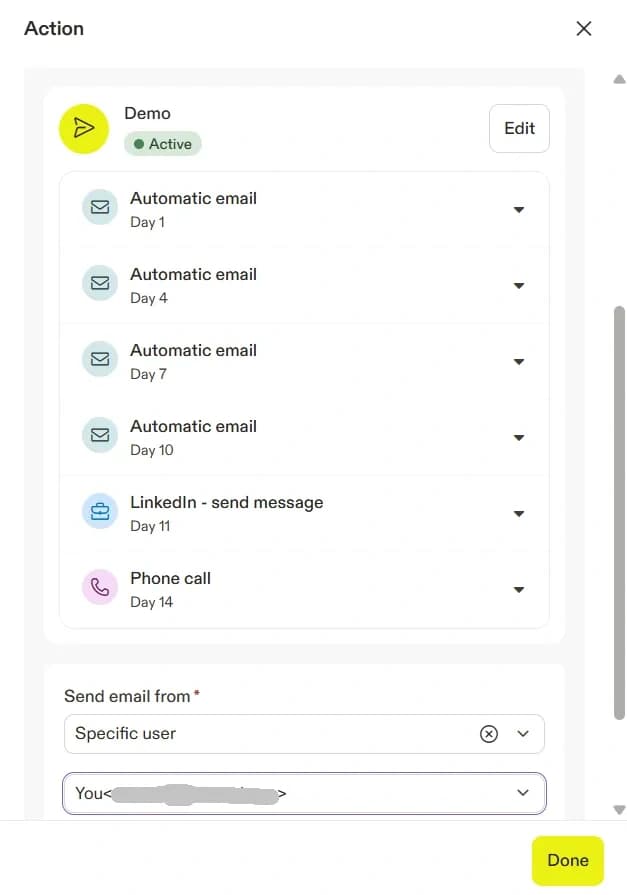
- Add contact to a sequence
- Update a contact field
- Assign owner
How to Create a Workflow in Apollo.io
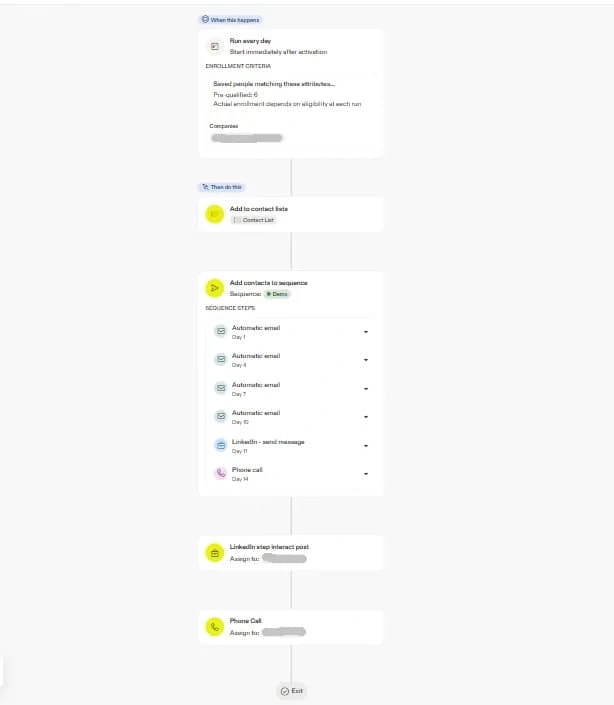
Step 1: Create a New Workflow
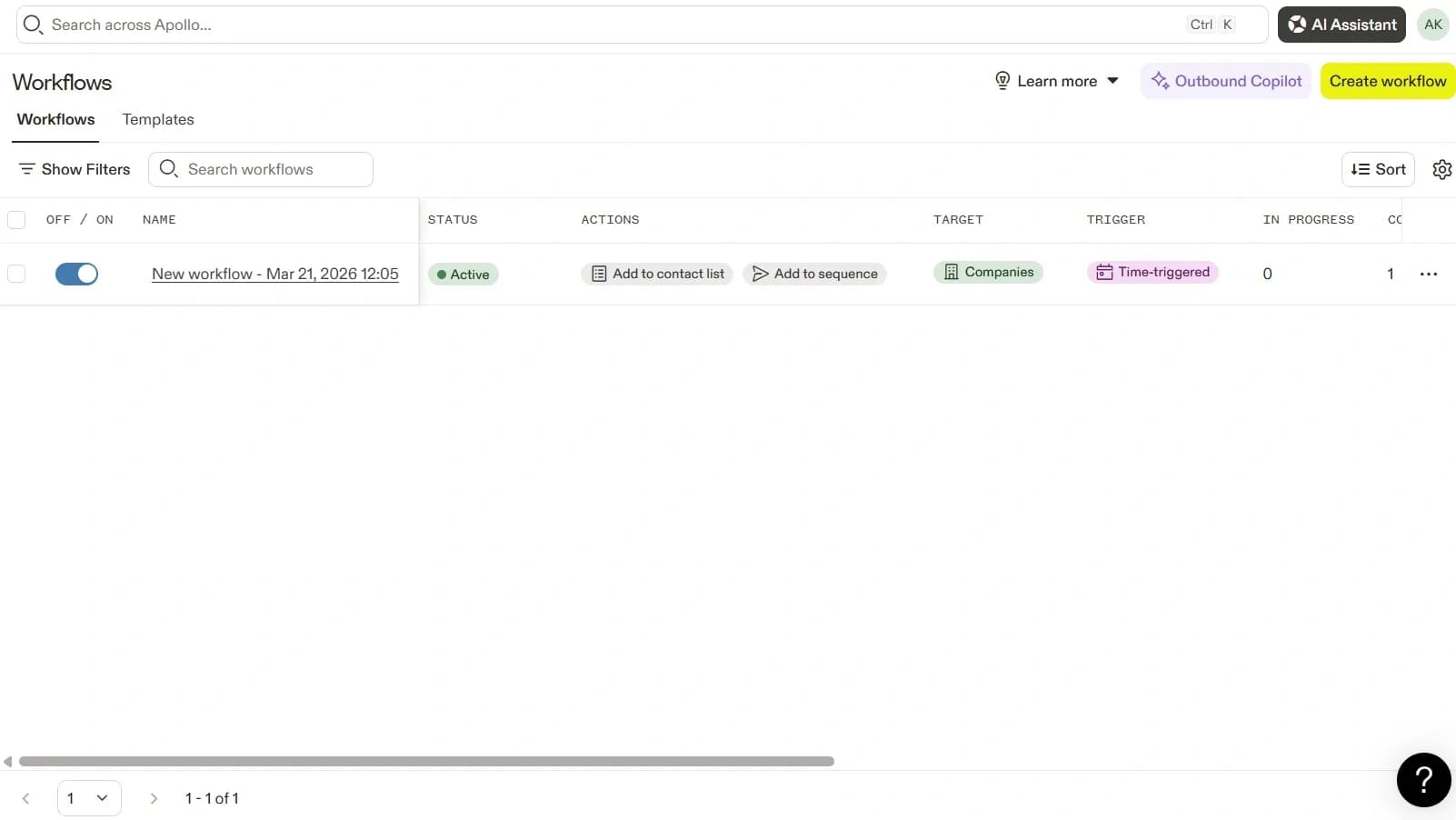
- Open Workflows.
- Click on Create Workflow.
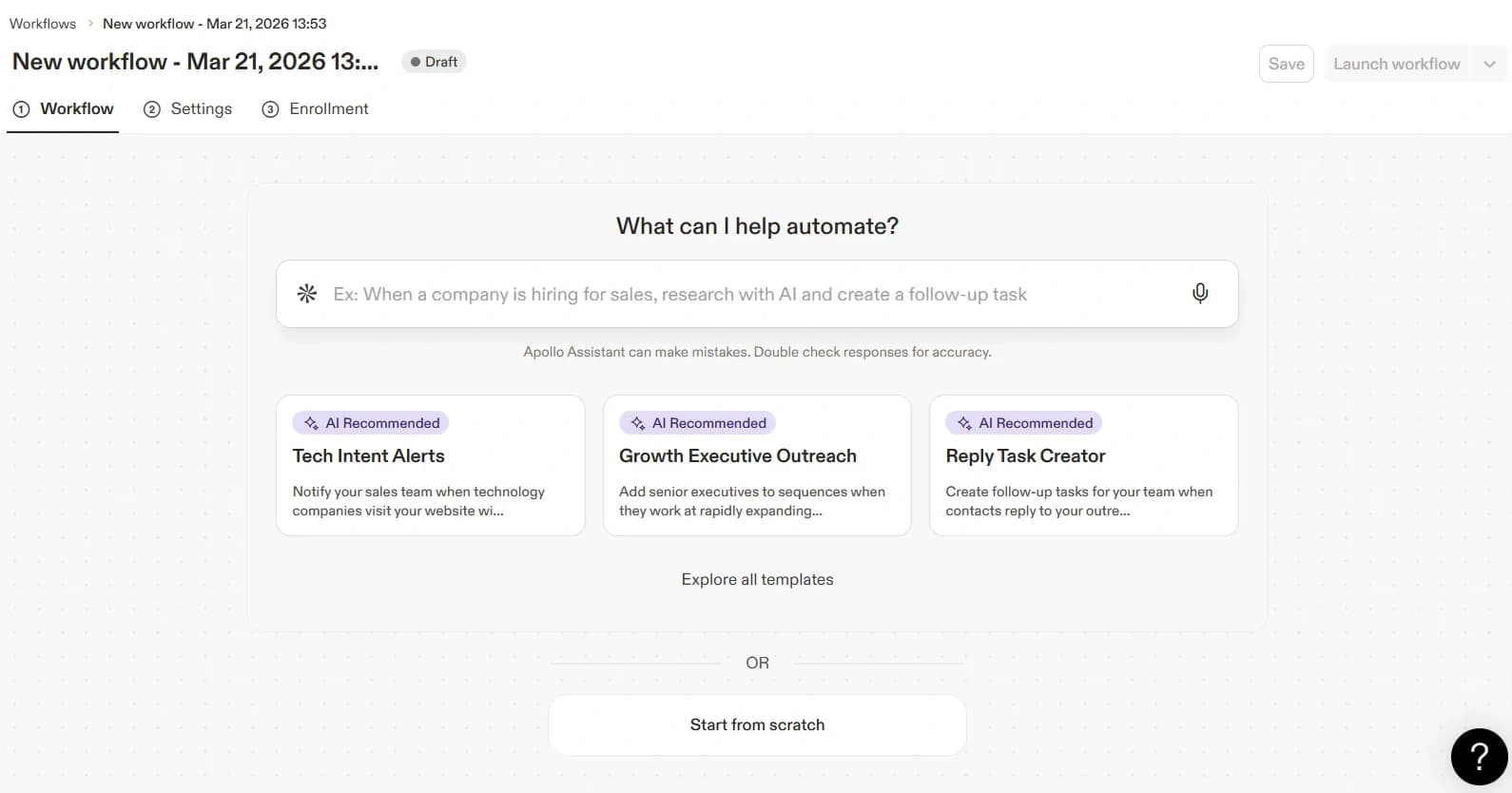
- Select the Start from Scratch option.
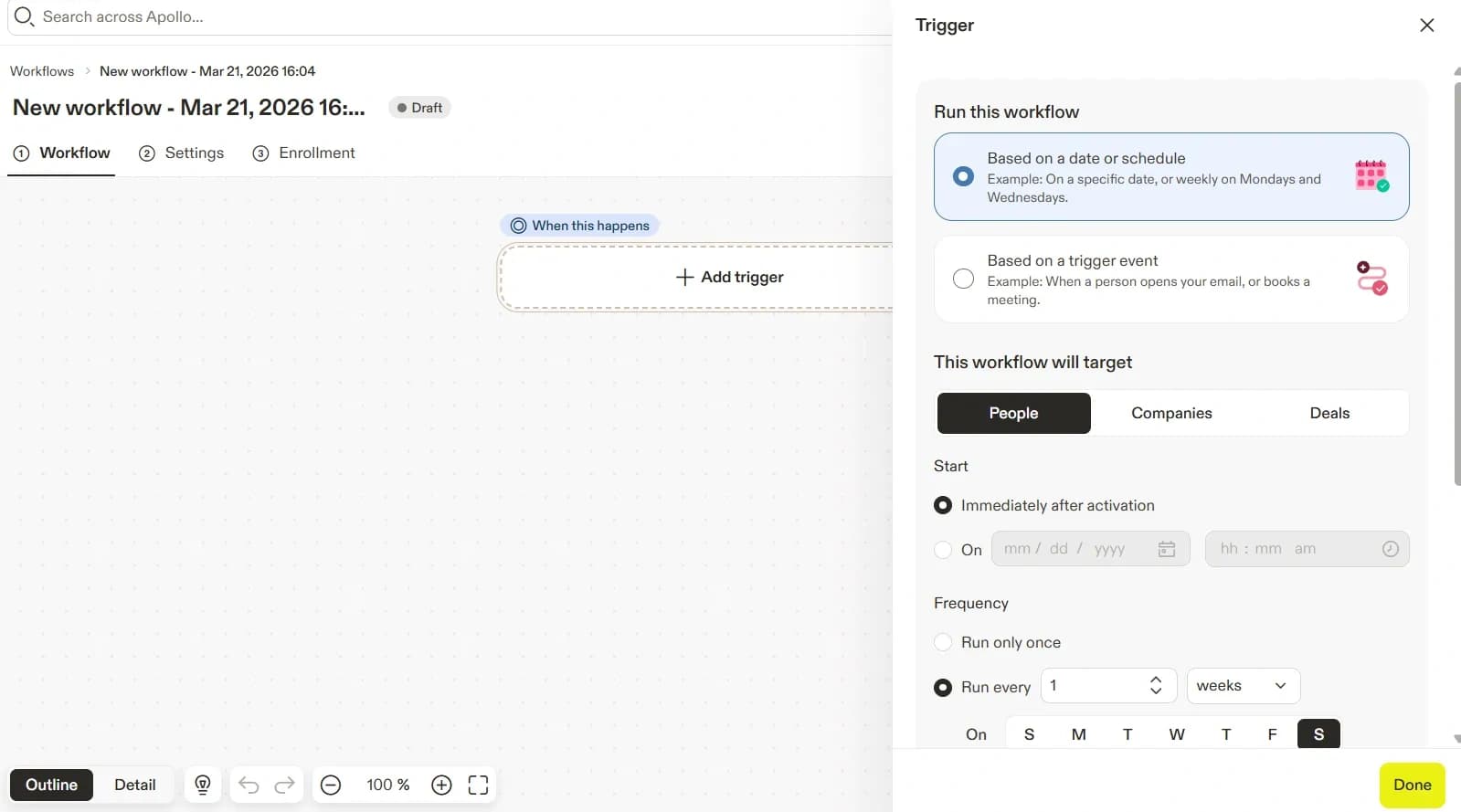
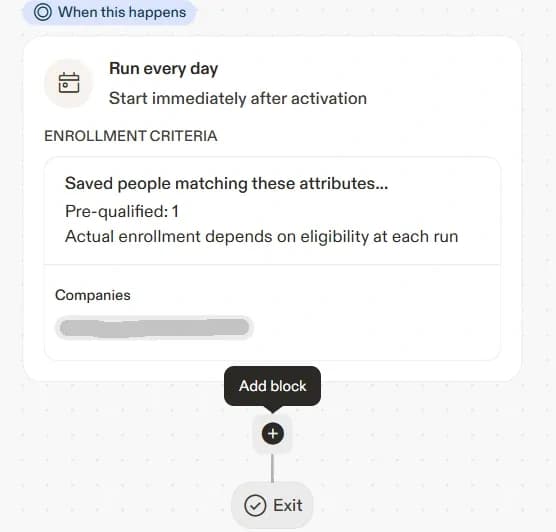
Step 2: Select a Trigger
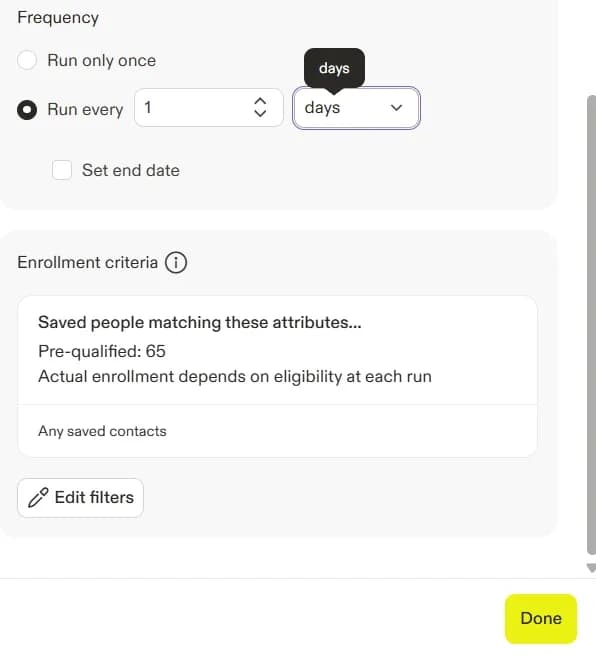
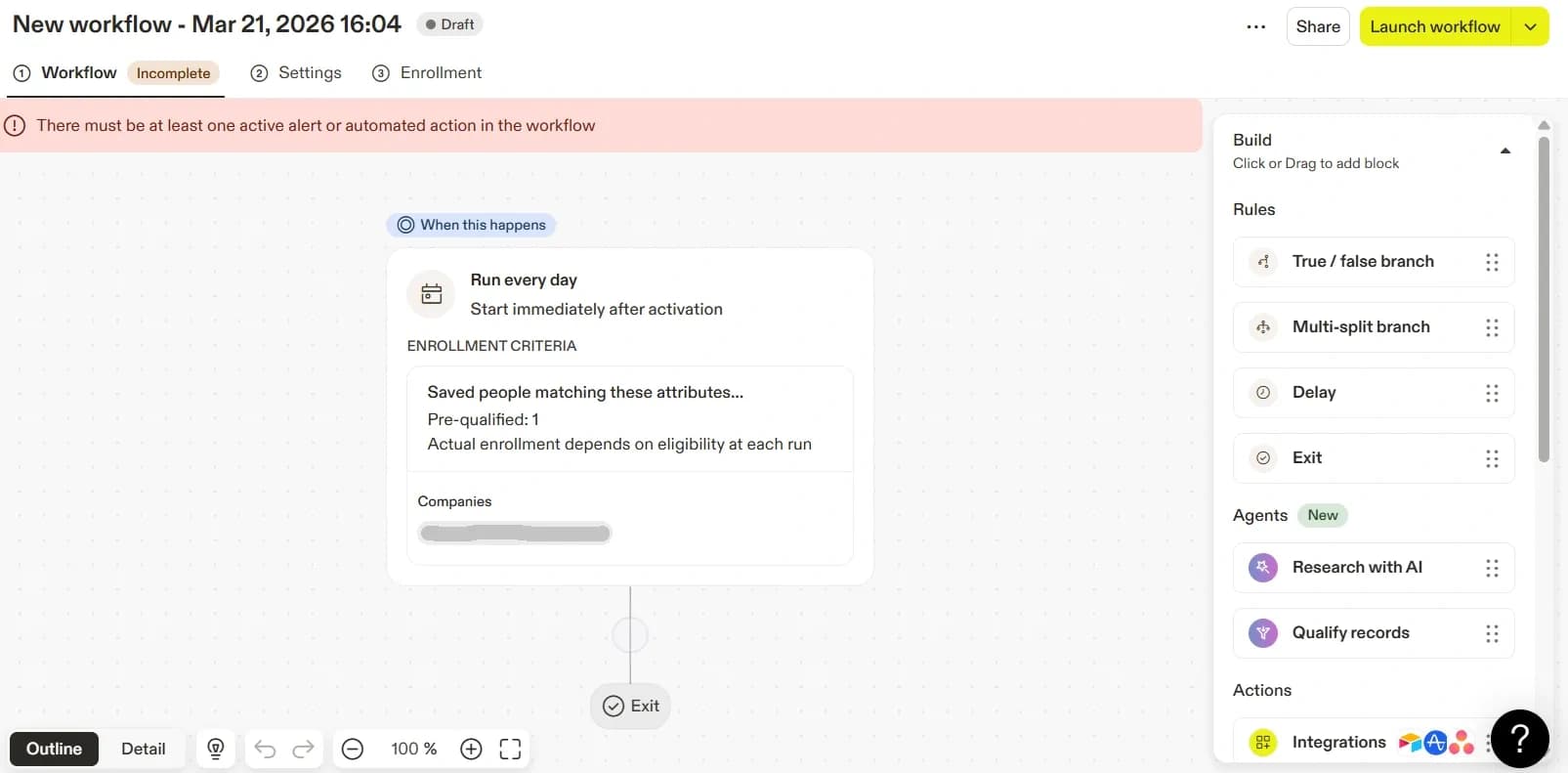
- Select the Trigger as Based on Date or Schedule, then choose Run Every - Days as the schedule.