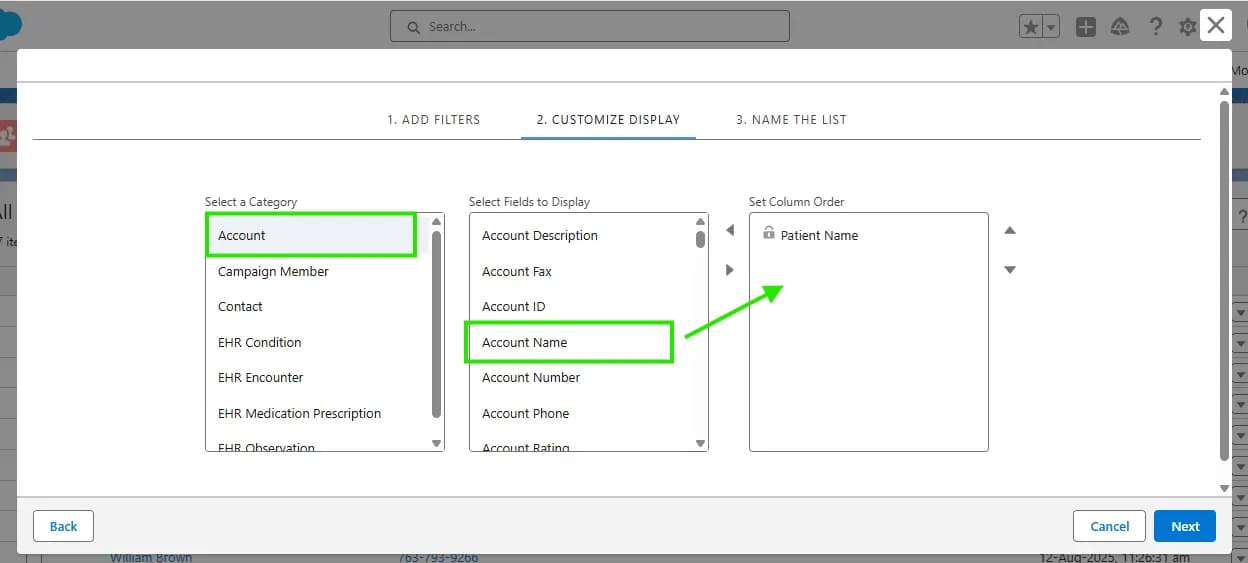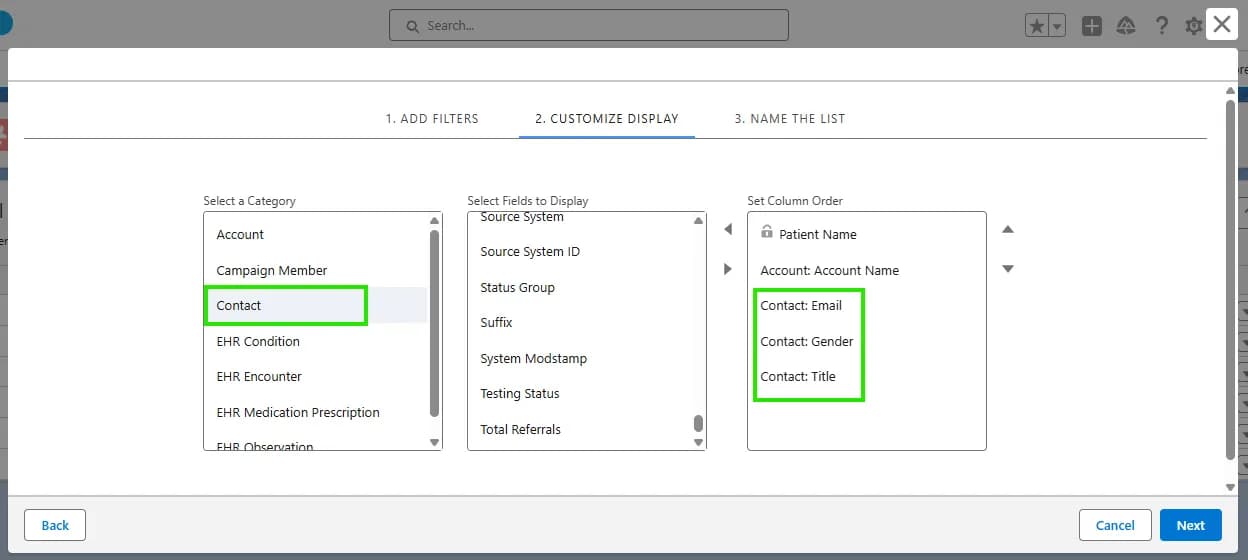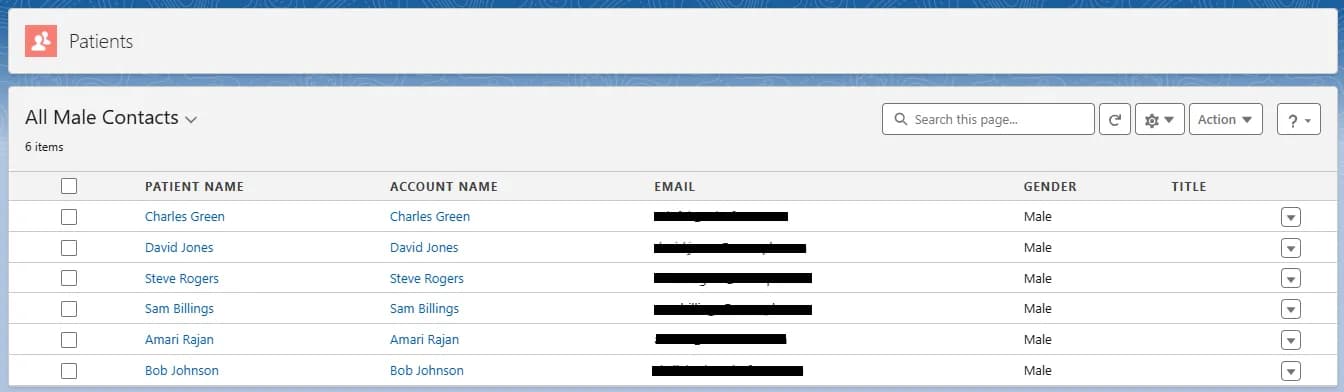
In this blog, you will learn how to create smarter, more informative patient lists in Salesforce Health Cloud by adding related data like sessions and appointments. Instead of viewing just basic patient details, you’ll discover how to customize list views and use cross-object relationships to bring all relevant information into one place. This approach makes managing patient care easier, faster, and more efficient, helping care teams see the bigger picture at a glance.
Key Concepts
- Patient List Views
- Health Cloud shows lists of patients with basic info like name and profile.
- You can customize these lists to include extra useful info that fits your needs.
- Cross-Object Relationships
- Sometimes related data (like a patient’s Account) isn’t directly visible in the patient list.
- You can use cross-object relationships to link related objects and bring that data into your list.
How To Add Related Data (Like Contact) to a Patient List?
- Example: You want to show contact details (like name, email, their account) in the patient list.
- The contact object has a lookup to the Account (patient), but it doesn’t appear automatically in the list.
- Here’s what you do:
- Use Salesforce’s Cross-Object Relationship feature from App Launcher.
- Create a new cross-object relationship:
- Link the Contact object to the Account (patient).
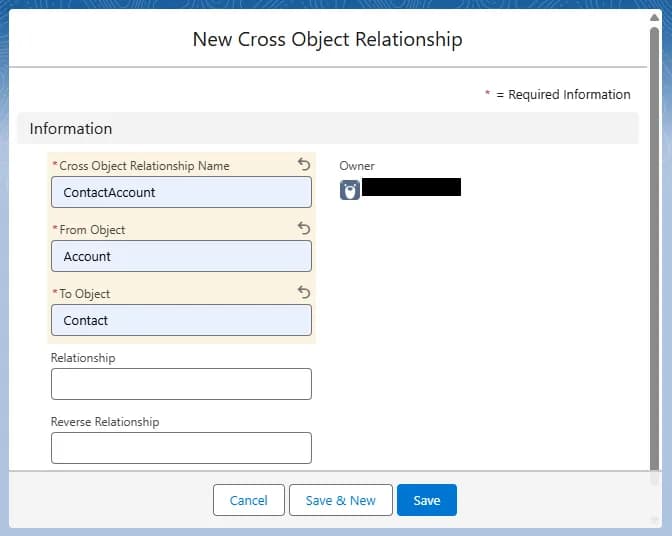
- After creating the cross-object relationship object's record, you will be able to choose the contact from the list where you will create a new patient list.
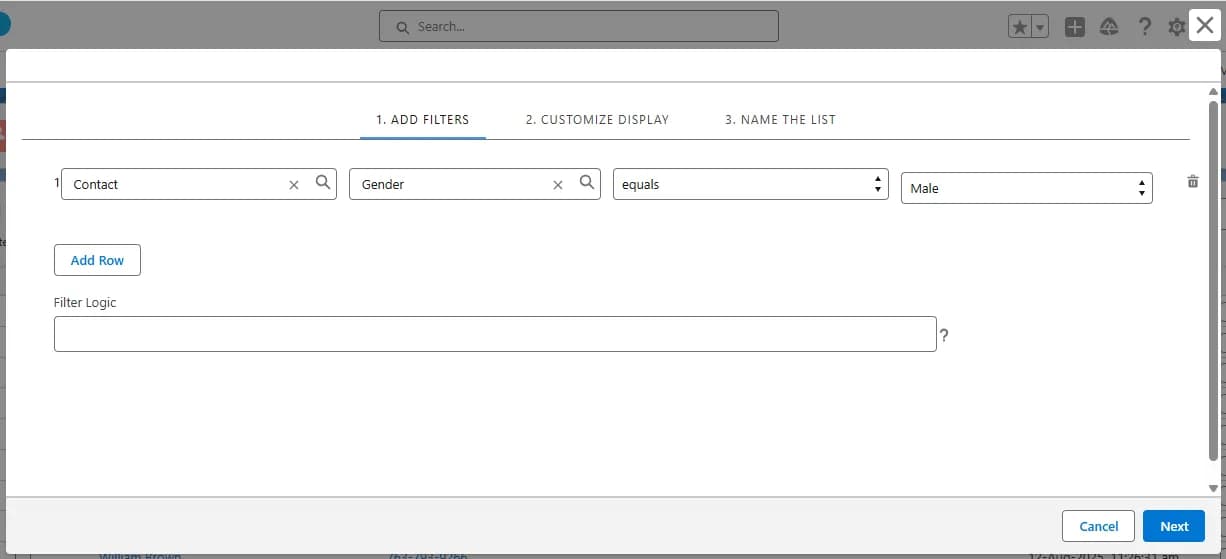
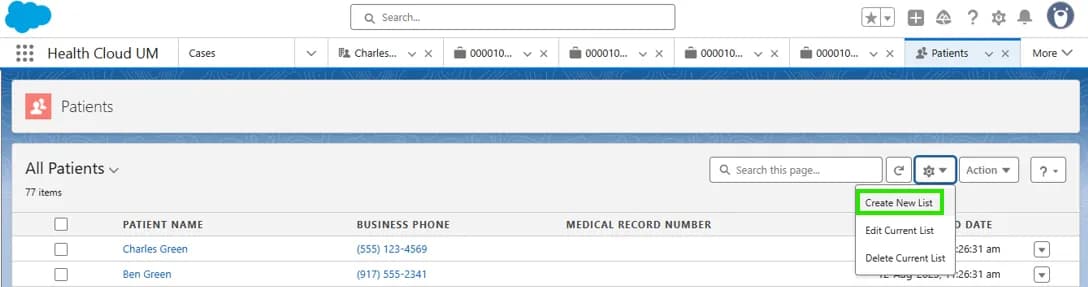
- Now, let's create a new patient list for all the Male contacts.
- Click on the Create New List.
- Select the Contact from the record.
- Select the Gender from the field.
- Operator should be equal.
- Choose the Male from the list.
- Click on the Next button.