This walkthrough shows how to run your MCP servers from the command line, call tools and fix the extensionCall error we hit. Everything is written in simple steps so you can repeat it later.
1) What we already have
Your repo already has two MCP servers configured in:
d:\mcp.vscode\mcp.json
They are:
- Salesforce MCP (runs npx @advanced-communities/salesforce-mcp-server)
- Custom MCP (runs node server.js in my-mcp-server/)
Your Custom MCP server exposes tools like:
- getObjectFields
- extensionCall (calls Apex Extension.call)
There is also a local HTTP server that lets us call MCP tools from the CLI:
my-mcp-server/ui-server.js
That server reads .vscode/mcp.json and exposes endpoints like:
- GET /api/mcp/servers
- GET /api/mcp/tools
- `POST /api/mcp/call**
- POST /api/agent (natural language prompts via GPT)
2) Start the local MCP runner
From the repo root:
npm --prefix my-mcp-server run ui
This starts the local server at:
http://localhost:3000
3) List MCP servers
Invoke-RestMethod http://localhost:3000/api/mcp/servers
You should see something like:
{
  "servers": ["Salesforce MCP", "Custom MCP"]
}
4) List tools on a server
Example for the Custom MCP server:
Invoke-RestMethod "http://localhost:3000/api/mcp/tools?server=Custom%20MCP" |
  ConvertTo-Json -Depth 20
You will see tool names and their input schemas.
5) Call a tool directly from the CLI
Example: get fields for Account:
powershellInvoke-RestMethod http://localhost:3000/api/mcp/call `
  -Method Post `
  -ContentType "application/json" `
  -Body '{"server":"Custom MCP","tool":"getObjectFields","args":{"objectName":"Account"}}'
You will see the output like this:
  result------
  @{content=System.Object[]; structuredContent=}
That output is normal, PowerShell is showing the result object, but it isn’t expanding the content array.
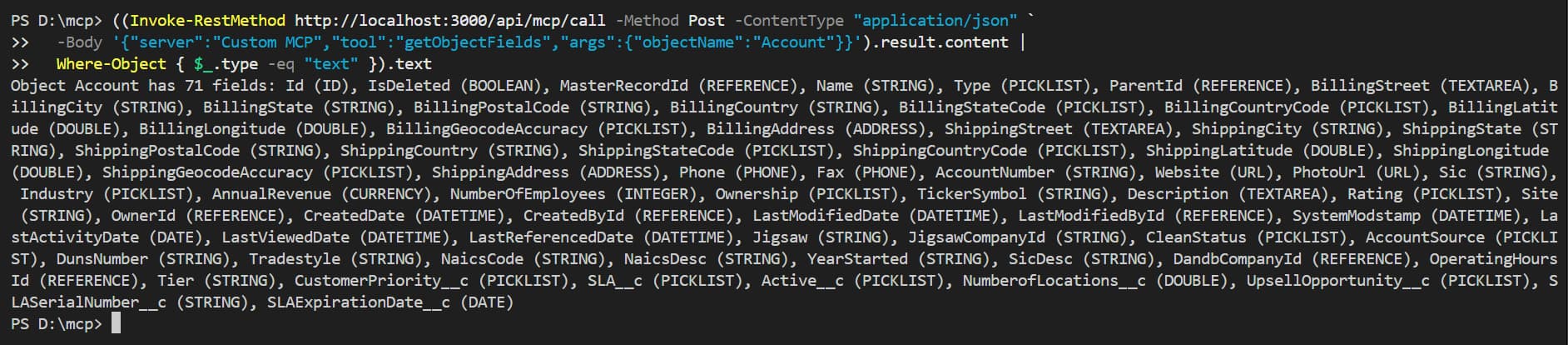
To see the detailed output execute this command:
((Invoke-RestMethod http://localhost:3000/api/mcp/call -Method Post -ContentType "application/json" `
  -Body '{"server":"Custom MCP","tool":"getObjectFields","args":{"objectName":"Account"}}').result.content |
  Where-Object { $_.type -eq "text" }).text
6) Use natural language prompts (optional)
If you want to type prompts like a chat (GPT chooses tools automatically), you need an OpenAI key in .env:
OPENAI_API_KEY=your_key_here
Then run:
Invoke-RestMethod http://localhost:3000/api/agent -Method Post -ContentType "application/json" `
  -Body '{"prompt":"show the 10 most recent Account records"}' |
  ConvertTo-Json -Depth 20
To show only the final response:
(Invoke-RestMethod http://localhost:3000/api/agent -Method Post -ContentType "application/json" `
  -Body '{"prompt":"show the 10 most recent Account records"}').text
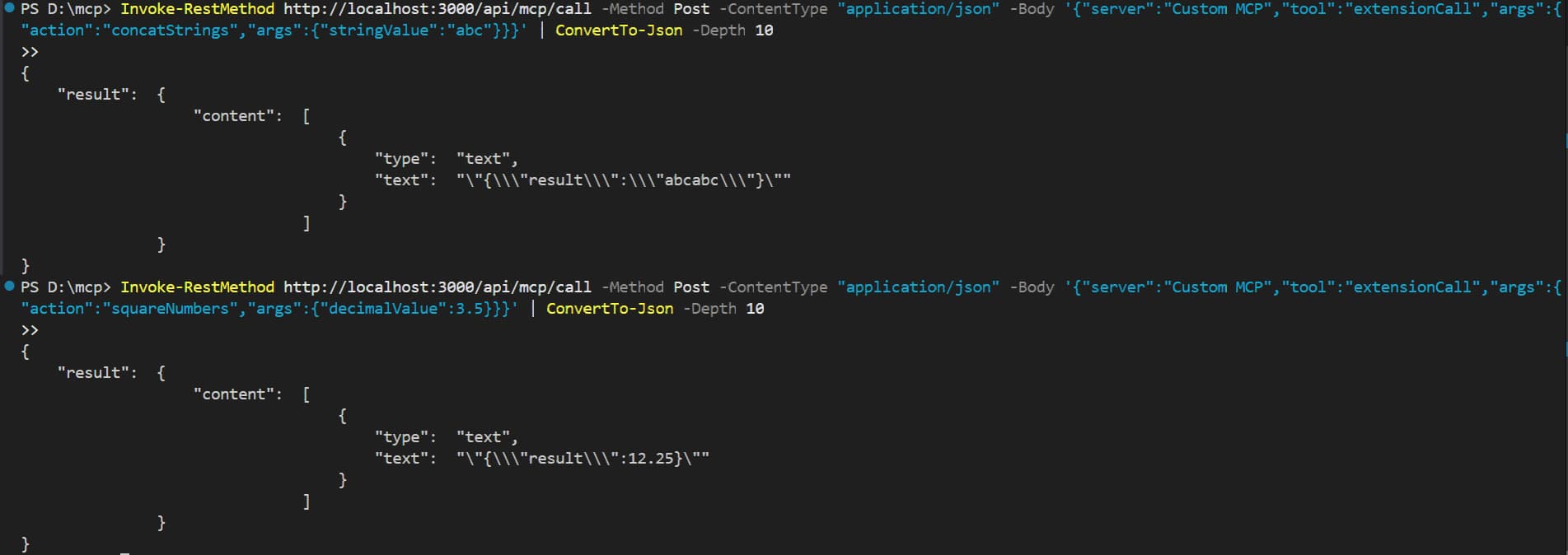
7) Call your Apex Extension via extensionCall
You created this Apex class:
Extension.clsglobal class Extension implements Callable {
  String concatStrings(String stringValue) {
    return stringValue + stringValue;
  }

  Decimal squareNumbers(Decimal decimalValue) {
    return decimalValue * decimalValue;
  }

  global Object call(String action, Map<String, Object> args) {
    switch on action {
      when 'concatStrings' {
        return this.concatStrings((String)args.get('stringValue'));
      }
      when 'squareNumbers' {
        return this.squareNumbers((Decimal)args.get('decimalValue'));
      }
      when else {
        throw new ExtensionMalformedCallException('Method not implemented');
      }
    }
  }

  global class ExtensionMalformedCallException extends Exception {}
}