In Salesforce Financial Services Cloud (FSC), every client’s financial world extends beyond individual accounts, it includes families, households, business entities, and professional connections. To accurately represent these complex networks, FSC provides the ability to customize Group Types and Roles, ensuring that organizations can model real-world structures with precision.
By defining group types such as Households, Trusts, or Business Relationships and assigning meaningful roles like Spouse, Beneficiary, or Trustee, advisors gain a clearer view of how clients and their related parties are connected. This not only helps in providing personalized advice but also supports compliance, collaboration, and reporting across the client lifecycle. Customization empowers firms to go beyond the out-of-the-box setup, tailoring role definitions, roll-ups, and relationship maps to meet unique business needs. In this blog, we’ll walk through how to configure group membership, set up permissions, define group roles, and enhance record pages with relationship components so that advisors can unlock the full value of Group Membership in FSC.
Customize Group Types and Roles
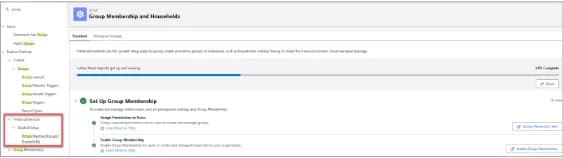
- Go through to Setup > Guided Setup > Group memberships & Households
-
Assign Permissions to Users Note: (no need to configure this in the FSC Trail Org) Admins usually create a Group Membership Permission Set for users that need access to Group Membership. Users will also need Financial Services Cloud Extension. Other required permissions required to use the guided flows for merging and splitting party relationship groups can be found HERE.
-
Enable Group Membership: Settings > Quick Find > Group Membership Settings Note: This is already enabled in the FSC Trial org. This setting gives access to the data model and 2 ARC templates that visualize Household & Groups.
-
Go to App Launcher > Party Relationship Groups and click New Group.
-
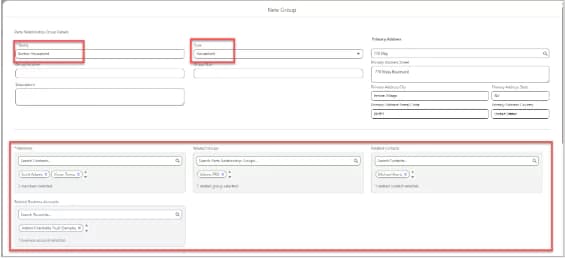
Add Name, Type “Household”, Members, Related Groups, Related Contacts, Related Business Accounts.
- Click Next.
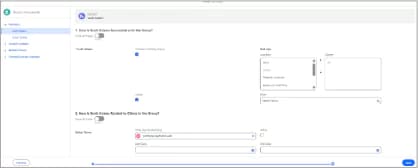
- Now you can define Group Membership Roles, Roll-Ups and Relationships within the Household.
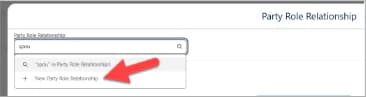
- To create a new New Party Role Relationship search in the Party Role Relationship field by typing Spouse and hitting Enter. This will open up a search window.
- Next click the + New Party Role Relationship.
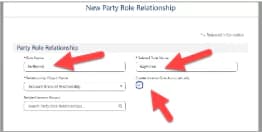
- Fill out the fields and click Save.
- If you receive an ERROR message - we are working on fixing the issue.